


1. Login on computer
Step 1: Go to https://eztrade.fpts.com.vn and log into your stock trading account
Step 2: Log in to your account (First login password is sent by FPTS into your email or you are directly provided with a password)
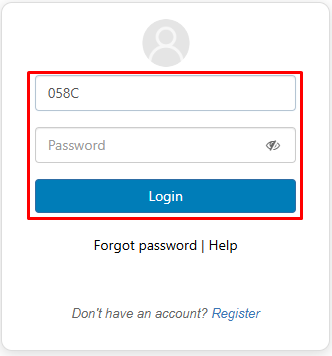
Step 3: Change your password. You must change the first-time password provided by FPTS.
Note:
- A password must have at least 8 characters
- The password must contain both uppercase letter, lowercase letter, number and at least one special character like `!@$%^&*()_+\-=[]{}:"\|,.<>\/?~
- The new password cannot be the same as the current one.
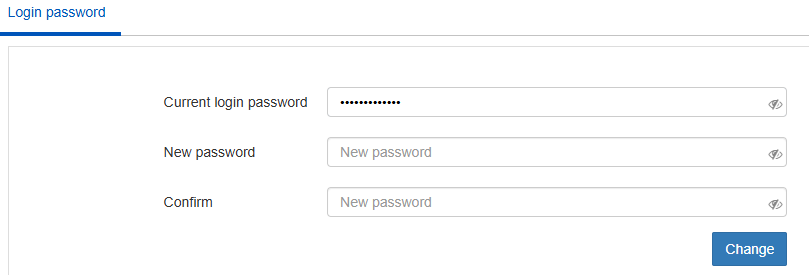
Note: If you forget the password, click Forgot Password or contact our Customer Service Department via hotline 19006446 for the new password granted.
1. Change on computer
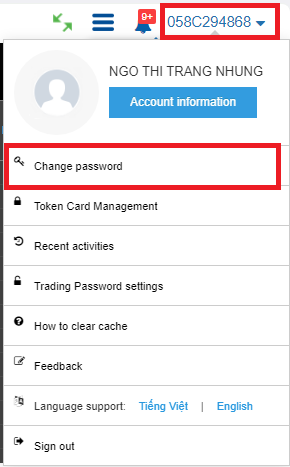
Navigate to the EzTrade main window, click on the account number 058C……. (on the upper right corner) and then click “Change Password”
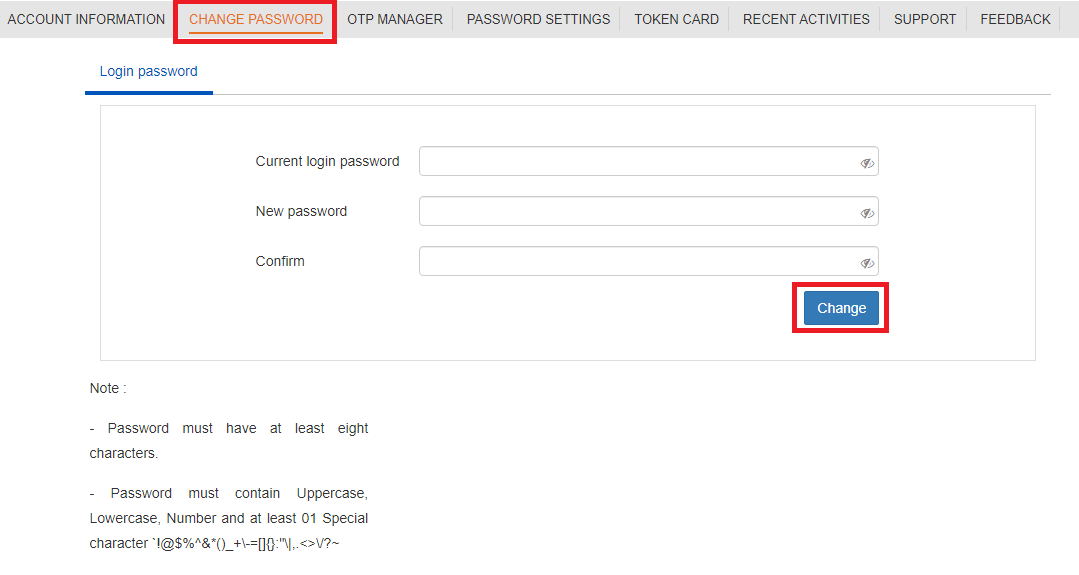
Enter your current password, new password and confirm (new password) then click “Change” to complete Password change.
If you use SMS OTP and Email OTP, your account must enter the OTP code for the first order in the current login session.
If you want to use the one OPT password for the whole login session feature, you need to register for Smart OTP (click on the link for instructions)
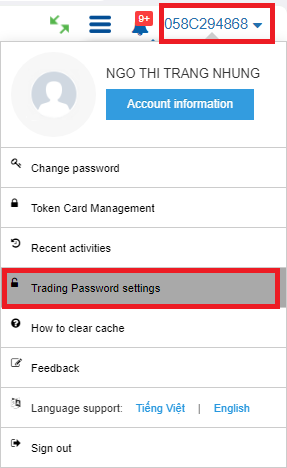
Navigate to the EzTrade main window, click on the account number 058C……. (on the upper right corner) and then click “Trading Password Settings”
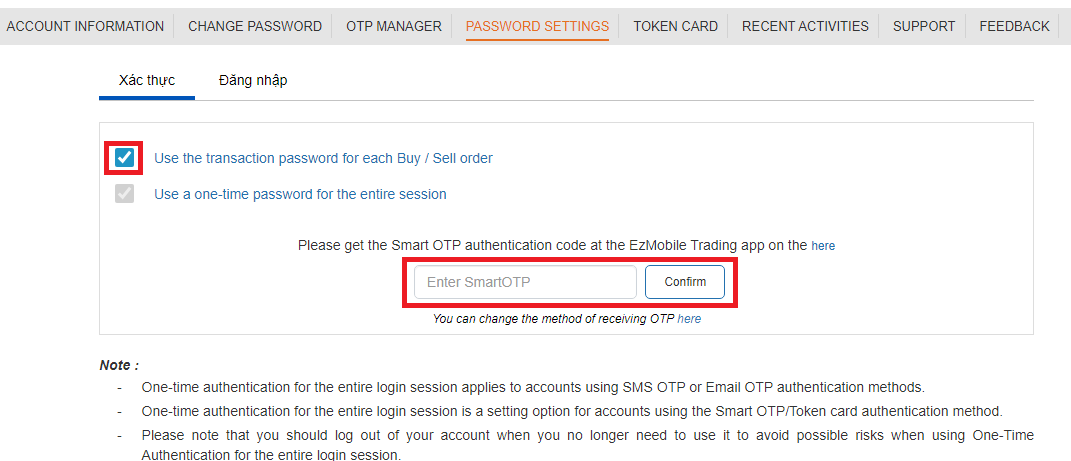
Tick the “Use the transaction password for each Buy/Sell order” box, then enter the OTP code to authenticate
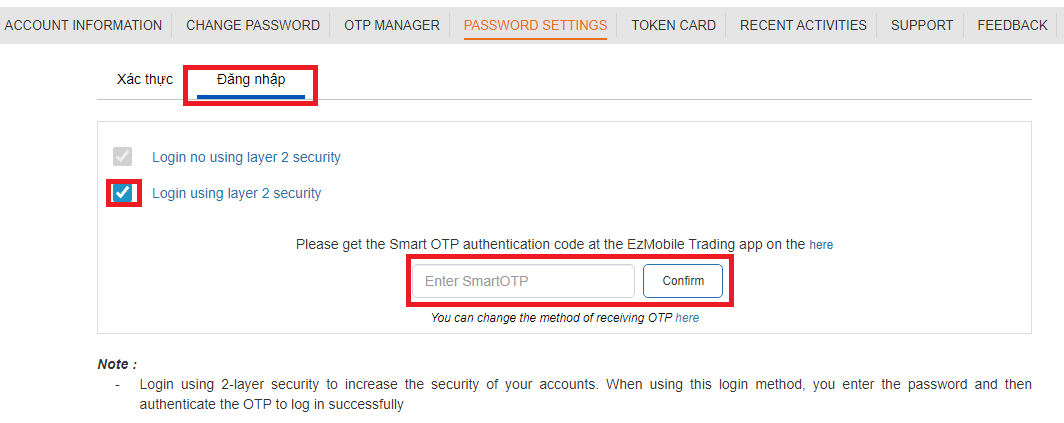
To enhance account security, you can register to use a 2-layer login password according to the following instructions:
Switch to the Login Tab, select Login using 2-layer security, enter the OTP code to confirm the change
The OTP authentication is a one-time password sent to the customer’s mobile phone number via either SMS or email. The OTP is generated at random by the system rather than by the user, can just be used once in a short time before it gets expired. The OTP enhances the security of customers' transactions while providing more convenience.
FPTS currently uses the OTP authentication to replace the static transaction password for various services including buy/sell securities orders, register and change services and other transactions.
For each login session, customers are only required to authenticate OTP once for the entire session and order placement (after OTP authentication is successful, you do not need to re-enter the OTP when placing orders after the OTP is authenticated and you do not log out/log in again). Customers can easily change their preferred OTP authentication method via the web trading platform or the EzTrade application.
* For EzTrade Users
- OTP Management Settings
From the EzTrade home screen, tap your securities account number 058C…… (located at the top-right corner of the market watch screen), then select Account Information/OTP Management.
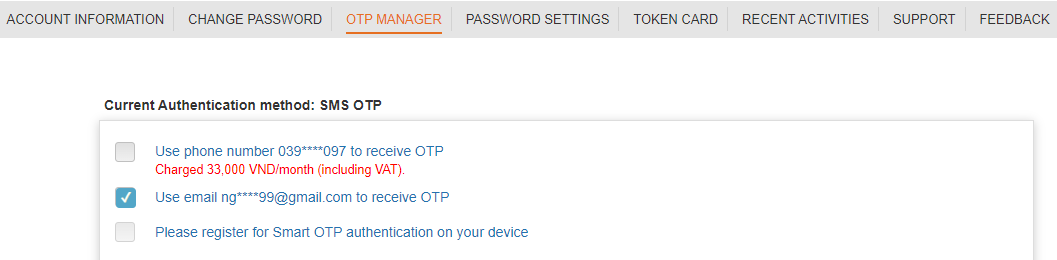
Select your preferred OTP authentication method (via mobile phone or email), then confirm the change.
- OTP Authentication before placing orders
Tap the icon located at the bottom right corner of the screen to authenticate the OTP.

The OTP authentication screen appears. Tap Receive OTP to request the system to send an OTP to your registered mobile phone number or email address.
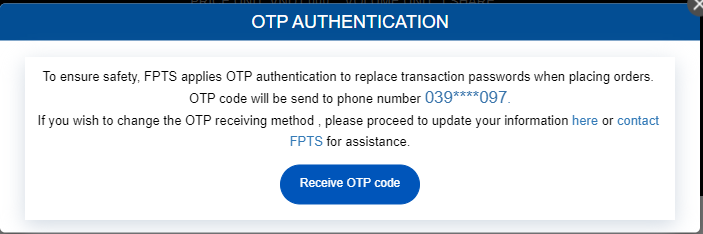
Enter the OTP received and tap Confirm to complete the authentication process.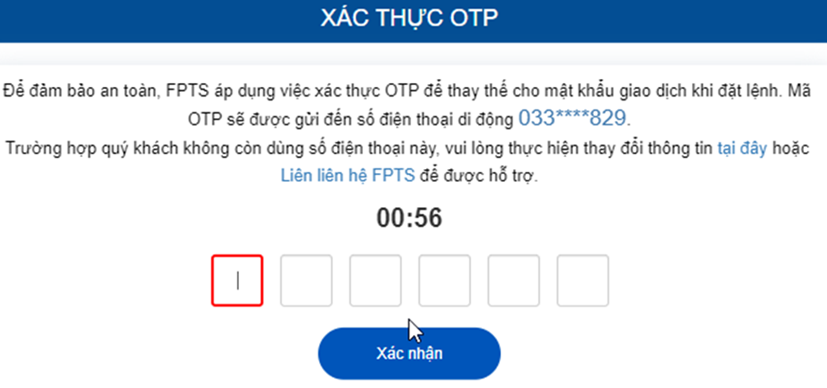
Note: The OTP will be sent to the mobile phone number c registered at FPTS. If your mobile phone number or email address changes, please follow the instructions here to update it.
Notes:
- Each OTP is valid for three (03) minutes from the time it is sent.
- A new OTP can only be requested 30 seconds after the previous request.
- Each OTP may be entered incorrectly a maximum of five (05) times.
- Customers may request a new OTP up to five (05) times if the OTP is entered incorrectly or expires before use.
After the fifth unsuccessful attempt, the OTP function of the account will be temporarily locked to ensure account security.
If your OTP function is locked, please contact FPTS Customer Service immediately for assistance.
The Smart OTP authentication method at FPTS is an authentication method by which a one-time password (OTP) is generated by the EzTrade application installed on your mobile device.
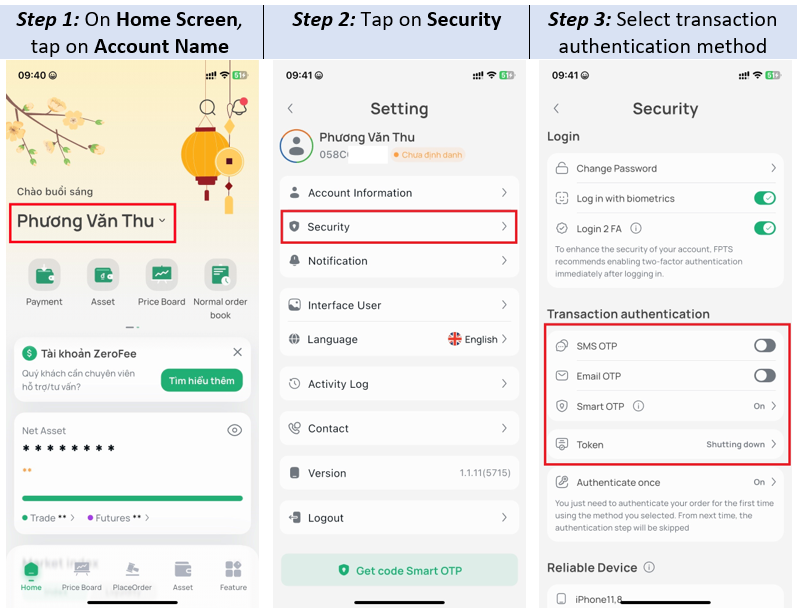
Notes:
- If you use Token card, please contact FPTS to register.
- Smart OTP Management:
- Change PIN code: Change PIN code to Smart OTP code
- Forget PIN code: Support methods when forgetting PIN code
- (*): On/Off option of the One-time Authentication only applies to Smart OTP and Token authentication methods:
- SMS OTP and Email OTP default one-time authentication for orders placed for the whole login session.
- Enable one-time authentication and “OTP validity period” option.
Login session: 480 minutes, 180 minutes, 120 minutes and 60 minutes
⇒ This is the validity period of OTP (for one-time authentication) after the previous authentication. When this period expires, you need to re-authenticate the OTP to make a transaction (re-authentication is required when logging in the next time).
Go to the OTP Management option to change the OTP authentication method to Email or SMS OTP.
* On EzTrade
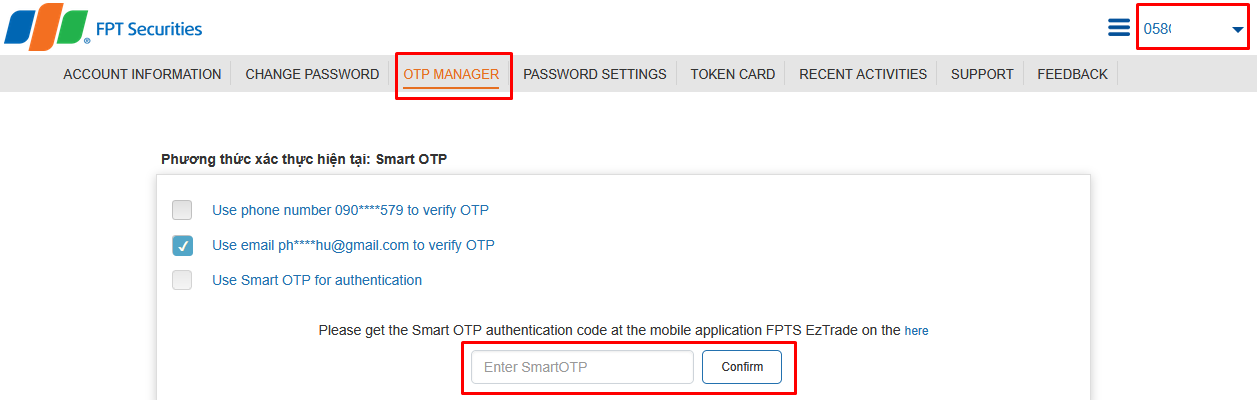
Note
- OTP Code is valid in 60 seconds since it is generated in a login session.
- Time for the next OTP code is 30 seconds.
- If you enter wrong OTPs for 05 consecutive times in the current OTP-generating period, please wait for the next valid period of a new OTP.
- The Save Smart OTP function is only valid in the login session.
- In case you lose your mobile phone or forget your PIN code, please contact our Customer Service Department via hotline: 19006446, ext. 1 for assistance.