


First-time Login (for customers accessing the system for the first time after opening an account)
Step 1: Visit: https://eztrade.fpts.com.vn , and click “Login” to access your securities trading account.
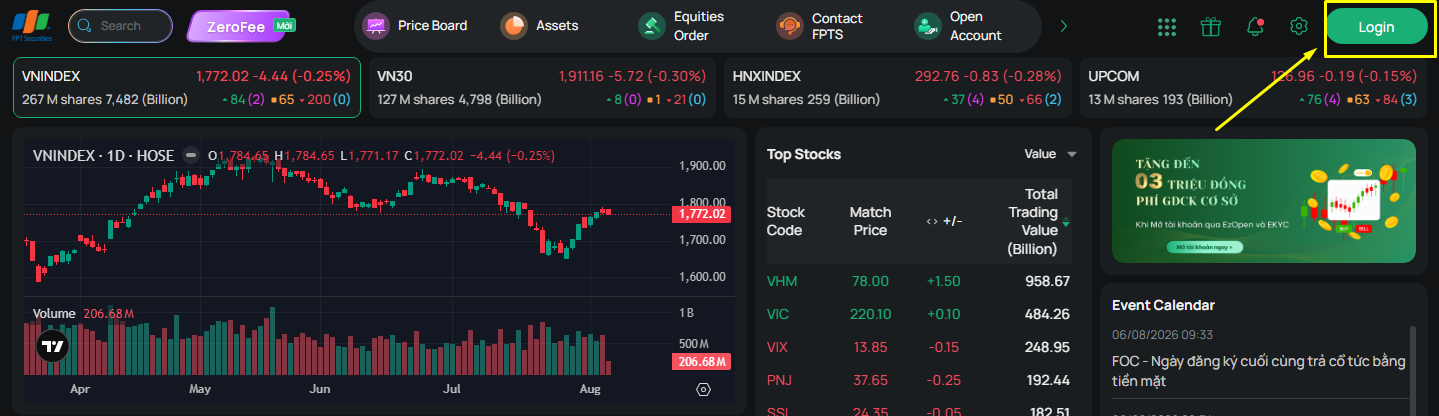
Step 2: Enter your account number and password (the initial login password is sent by FPTS via email or provided directly)
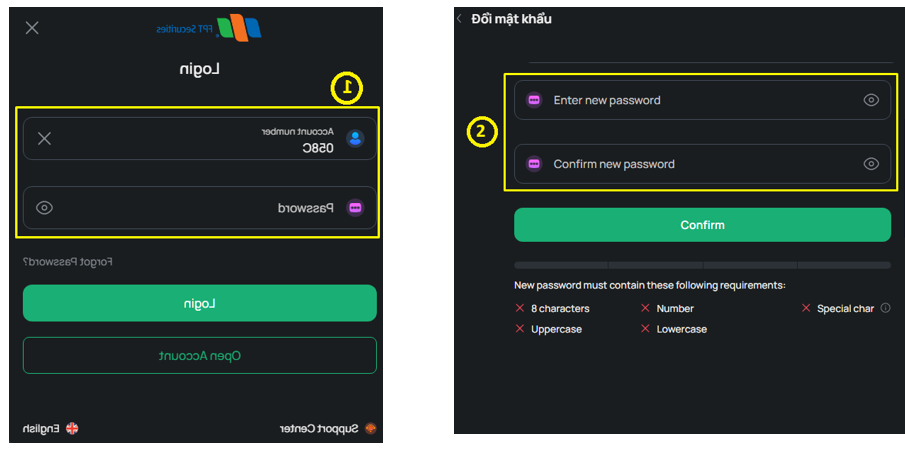
Step 3: Change Password: Create a new password to replace the initial password provided by FPTS. Then click “Confirm”. The system will display a message confirming that the new password has been activated successfully.
Note:
- The password must contain at least 8 characters.
- The password must include uppercase letters, lowercase letters, numbers and at least one special character: {`!@$%^&*()_+\-=[]{}:"\|,.<>\/?~}
- The new password must not be the same as the current password.
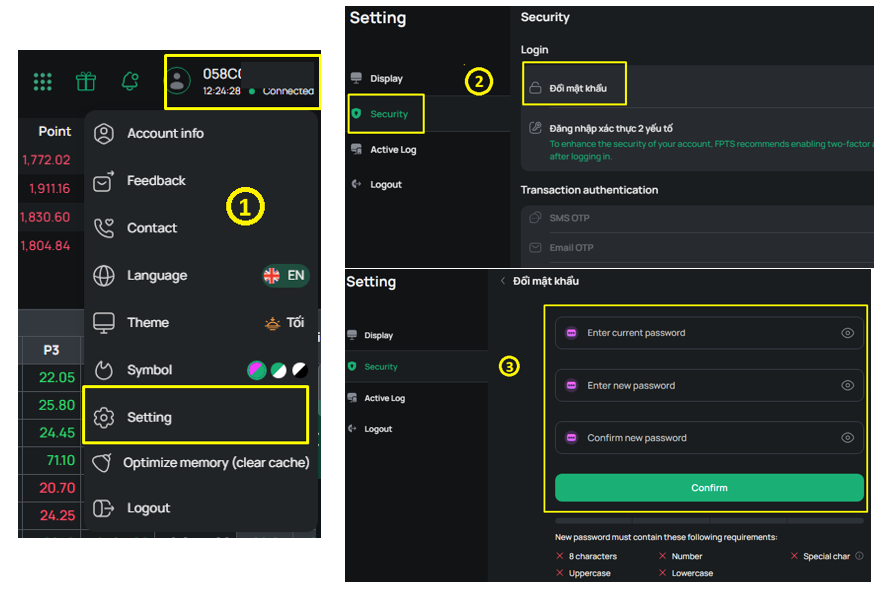
Step 1: On the Home screen, move the cursor and click the account icon (or the account number, e.g. 058C) in the upper-right corner of the screen. Select “Settings”.
Step 2: Select “Security”, then choose “Change Password”.
Step 3: Enter the current password and the new password in the corresponding fields, then click “Confirm” to complete the password change.
Note:
- The password must contain at least 8 characters.
- The password must include uppercase letters, lowercase letters, numbers and at least one special character: {`!@$%^&*()_+\-=[]{}:"\|,.<>\/?~}
- The new password must not be the same as the current password.
In case you forget your password: Click “Forgot Password” or contact the FPTS Customer Service Department via the hotline 19006446 to request a password reset.
To enhance the security of your account, you can enable Two-Factor Authentication (2FA) Login. When this feature is enabled, you will be required to enter two authentication factors when logging in: your login password and an authentication code (SMS OTP, Email OTP or SmartOTP).
To enable Two-Factor Authentication (2FA) Login:
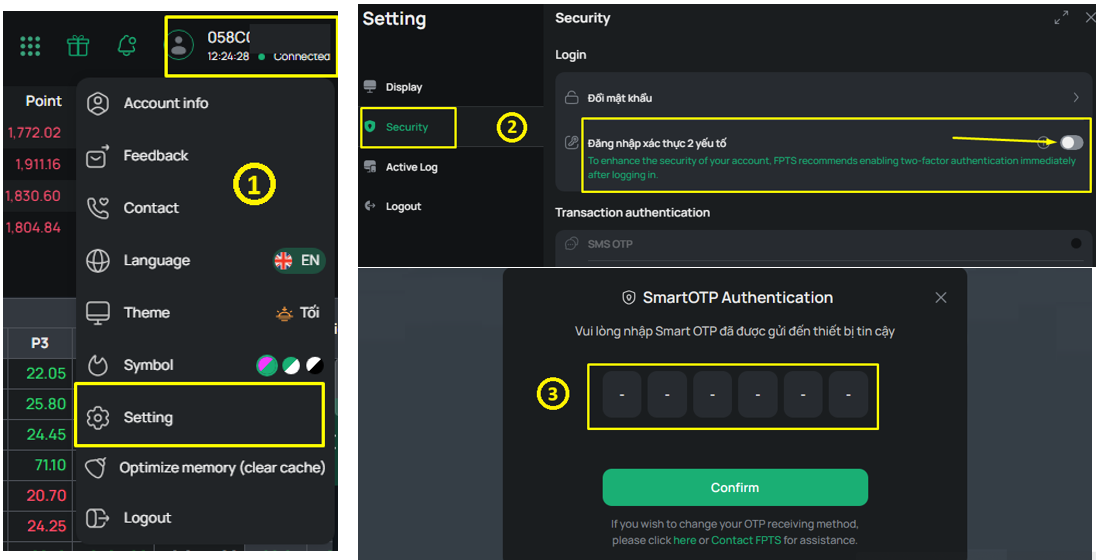
Step 1: Move the cursor and click the account icon (or the account number, e.g. 058C) in the upper-right corner of the screen. Select “Settings”.
Step 2: In the Settings interface, select “Security”. Under “Two-Factor Authentication Login”, switch the feature to On.
+ Step 3: Enter the OTP and click “Confirm”. The system will display a message confirming that the feature has been activated successfully.
An OTP (One-Time Password) is a one-time authentication code sent to your registered mobile phone via SMS or to your registered email address. OTPs are randomly generated by the system, cannot be created by users, and are valid for a short period of time before expiring. Using OTP enhances the security of your transactions while remaining convenient and easy to use.
FPTS currently uses OTP as the transaction authentication method in place of the static transaction password for services such as securities trading, service registration and modification, and other online requests.
For each login session on the FPTS trading system, you only need to verify your OTP once for the entire session. After successful authentication, you will not be required to enter another OTP when placing subsequent orders unless you log out and sign in again. You can also change your preferred OTP delivery method at any time via the EzTrade Web platform or the EzTrade mobile application.
1. Configure SMS OTP/Email OTP
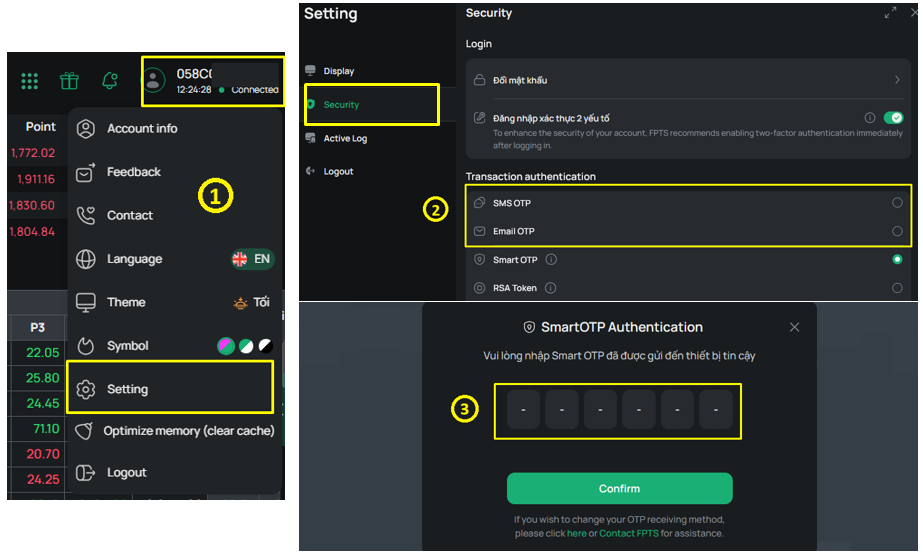
Step 1: On the Home screen, move your cursor to and click the Account icon (or your account number, e.g. 058Cxxxxxx) in the upper-right corner of the screen. Select "Settings"
Step 2: Select "Security", then choose "SMS OTP" or "Email OTP" according to your preferred authentication method.
Step 3: Enter the OTP to confirm the change. Once the update is successful, SMS OTP or Email OTP will be activated as your transaction authentication method.
Note:
- The OTP code will be sent to the mobile phone number or email address registered with FPTS. If you change your phone number or email, please update it according to the instructions.
- The OTP code is valid for 3 minutes from the time it is sent.
- You must wait 30 seconds before requesting another OTP code.
- You may enter an incorrect OTP code up to 5 times.
- You may request a new OTP code up to 5 times if you enter it incorrectly or fail to enter it in time.
- After 5 attempts, the system will temporarily lock the account's OTP feature for security purposes.
- If your OTP feature is locked, please contact the FPTS Customer Service Department immediately for assistance.
- For the SMS OTP transaction authentication method, starting October 1, 2025, FPTS will charge an SMS OTP fee of VND 33,000/month (VAT included).
2. Configure SMART OTP
Please download the EzTrade mobile application and follow the instructions provided here.
3. Configure One-Time Authentication per Session / Authentication for Every Buy or Sell Order
For customers using SMS OTP or Email OTP, the system is configured by default to require OTP authentication only once for each login session.
If you would like to authenticate every buy or sell order individually, you must register for SmartOTP.
To change your authentication preference, follow these steps::
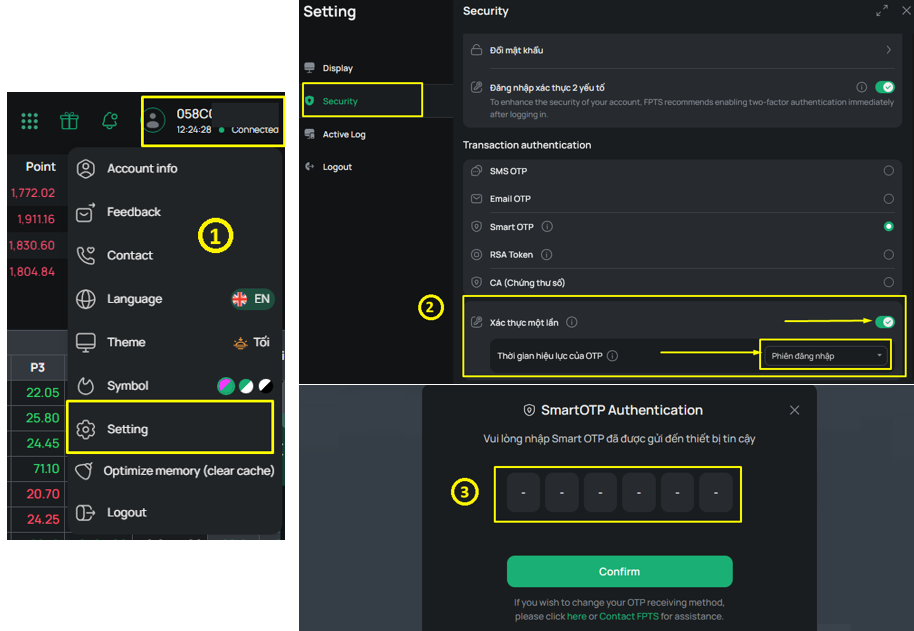
Step 1: On the Home screen, move your cursor to and click the Account icon (or your account number, e.g. 058Cxxxxxx) in the upper-right corner of the screen. Select "Settings".
Step 2: Select "Security", then turn the "One-Time Authentication" option On or Off as desired.
Step 3: Enter the OTP to confirm the change.
1. How to use Token Card
Token Card (Token) is an electronic authentication device that replaces the conventional transaction password mechanism for customers trading via FPTS's telephone trading service and EzTrade online trading platform.
Each Token has a unique serial number consisting of 8 or 10 characters printed on the back of the device (for example: 12345678). When registering for the service, each Token is assigned exclusively to a specific FPTS customer.
The Token automatically generates a random six-digit authentication code displayed on its screen. This code changes every 30 seconds. Each authentication code is uniquely generated, synchronized, and verified by FPTS's authentication server to ensure transaction security.
In addition to the automatically generated six-digit code, the Token also allows you to create and memorize an optional PIN consisting of 4 to 8 digits. (You may choose whether or not to use this feature.) For detailed instructions on configuring your PIN, please visit https://eztrade.fpts.com.vn.
Compact in size and similar to a USB device, the Token is convenient and easy to use. No software installation or additional configuration is required.
The Token provides an extremely high level of security, making unauthorized access virtually impossible. Each Token code is valid only for a single transaction, at a specific point in time, and for a specific customer. Even if a Token code is exposed, it becomes invalid for any subsequent transaction.
For the Token Card Management and Usage Policy, please click here.
* Telephone Trading:
Step 1: Provide your broker with the required order details, including the buy/sell instruction, security symbol, quantity, price, and account number.
Step 2: Read the Token code to your broker to authenticate the transaction.
Note: The Token code refers to the six-digit code displayed on the Token screen (or your PIN followed by the six-digit Token code if you have enabled PIN protection).
* Internet Trading:
Step 1: Log in to EzTrade via https://eztrade.fpts.com.vn using your securities account number (058Cxxxxxx) and your login password issued by FPTS.
Step 2: Enter the required order information on the Order Entry screen and click "Save". Then enter your Token code as the transaction authentication code and click "Confirm”.
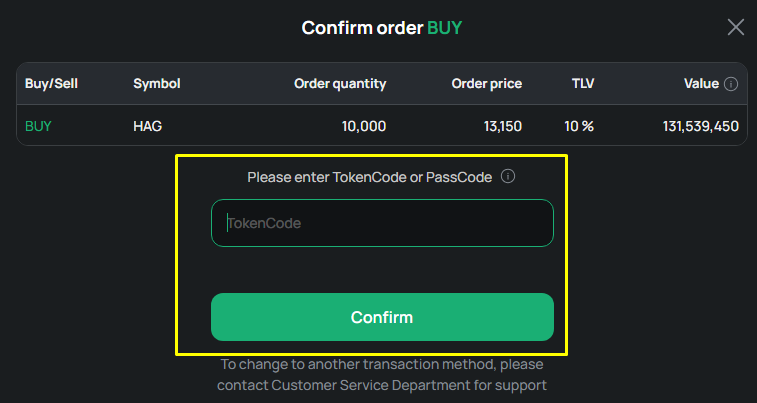
* Token Card Management: The Token Management feature allows you to monitor and manage your Token independently. You can review your Token usage history, synchronize your Token, and configure your PIN. For more information, please refer to "Token Management" at https://eztrade.fpts.com.vn.
2. How to synchronize Token Card
* When does a Token Card become unsynchronized?
A Token Card may become unsynchronized in either of the following situations:
A time mismatch occurs between your Token and the FPTS authentication server.
You enter an incorrect transaction password three consecutive times.
* Synchronizing Your Token Card
- You can synchronize your Token Card yourself by logging in to your EzTrade account at https://eztrade.fpts.com.vn.
- Click your account number (058Cxxxxxx) → Settings → Security → Token Management
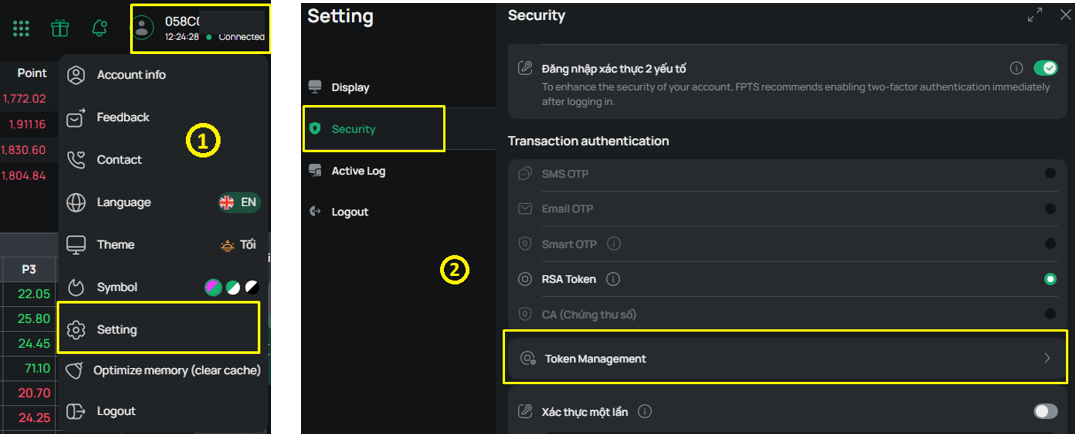
- If synchronization is required, click "Synchronize".
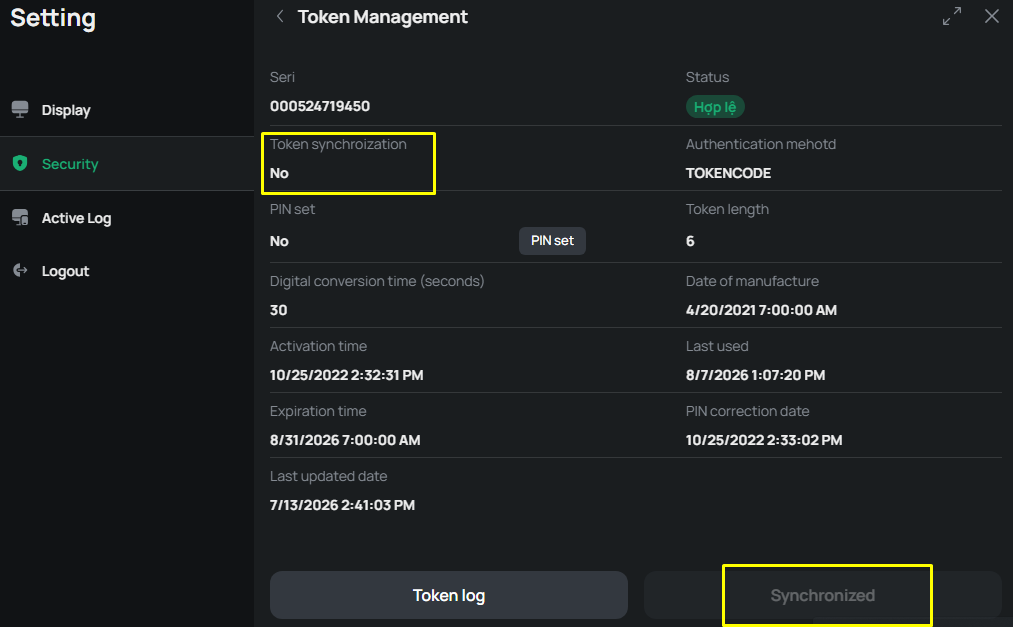
- Enter two consecutive Token codes, then click "Synchronize".
Alternatively, you may contact FPTS Customer Service for assistance. After verifying your account information, Customer Service will ask you to provide two consecutive Token codes to complete the synchronization process.
Note:
- The Token is manufactured with durable materials to ensure long reliability. However, to maintain optimal performance, please avoid exposing it to the following conditions:
- Extremely high temperatures (such as fire, hair dryers, or ovens), which may damage the casing and internal components.
- Excessive moisture (such as water or washing machines). Although the Token is water-resistant, prolonged exposure to water should be avoided to maximize its lifespan and accuracy.
- Strong impacts, including dropping the device from a height, crushing it with heavy objects, or subjecting it to severe impact.
- Do not disassemble the Token or tamper with its internal components.
- Keep your Token in a safe place to prevent loss or theft.
- The Token can be used for transactions both within Vietnam and overseas.
- Each Token code remains valid for 30 seconds only.
- If you enter a Token code but do not click "Confirm" before a new code is generated, the transaction will not be accepted.
- If multiple orders are submitted using the same Token code within the same 30-second period, only the first order will be accepted.
- The Token's expiration date is printed on the back of the device. Do not attempt to open the Token or replace its battery, as doing so may permanently damage the device.