
- Enter the stock: display the transaction information in the session of that stock
- Note: When entering the order screen, the stock field will automatically enter the most recently searched stock or the default stock if this is the first login.
- Information includes:

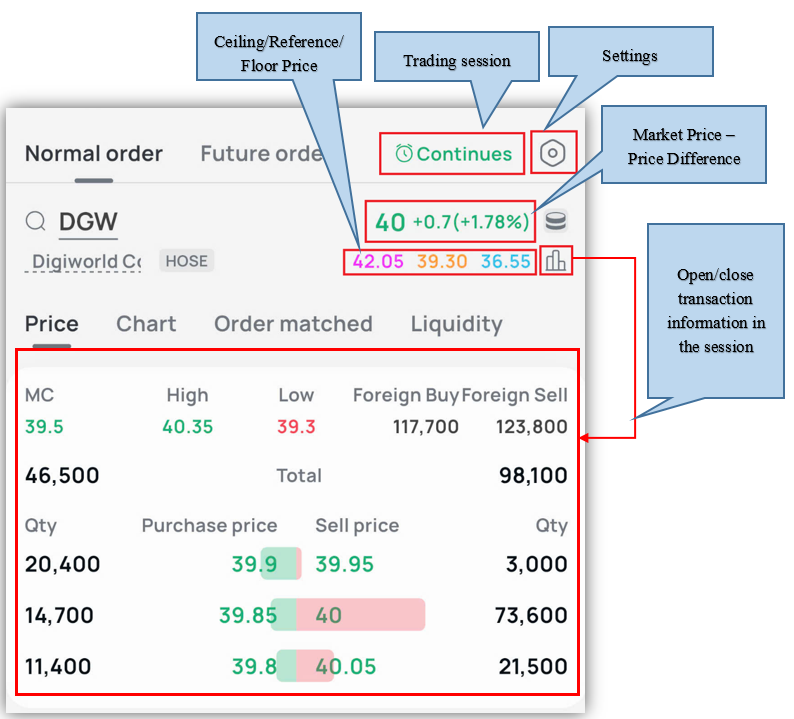
- When clicking on the price data fields (Market Price, Ceiling/Floor/Reference price, Top buy and sell prices), the price will be automatically filled into the price box in the order
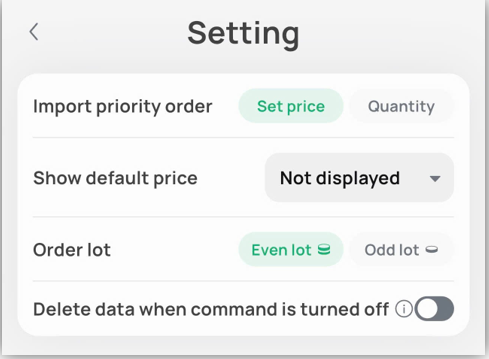
- Click on the Settings icon to open the settings screen on the order screen

* Turn On/Off Place order feature
- Click on Icon  to turn on/off place order feature
- The order screen will display as follows:

* Steps to place orders when enabling the “Pending orders” feature

- The information of the RECORD order will be displayed in the Pending Order List section. Click on the “Pending Order” icon to see the list of orders being RECORDED.
- The list of pending orders is displayed on the screen as follows:
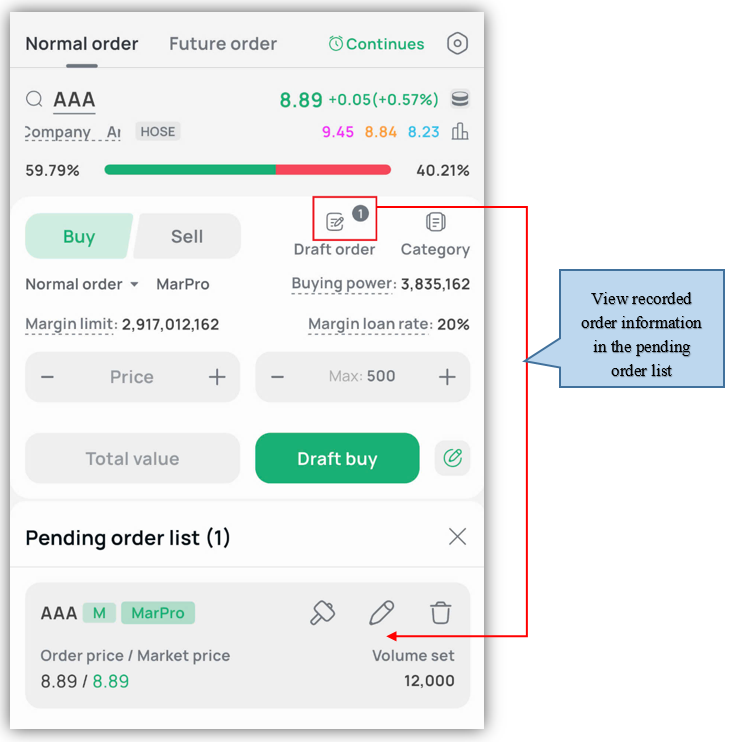
- For each Pending Order record: There are icons corresponding to the features of Place a recording order/Edit a recording order/Delete a recording order
* Edit pending order
- Click on the edit icon of the pending order to open the edit order screen -> Change the information you want

Please follow the steps below:


- After the order is successfully sent, you can view the order information in the Waiting for Match/Matched/Order Book tabs according to the order status.
- Note: In case you use ordinary margin trading, when you place a sell order, the system will prioritize selling the margin contract (with the closest expiration date).
* Sell % of portfolio
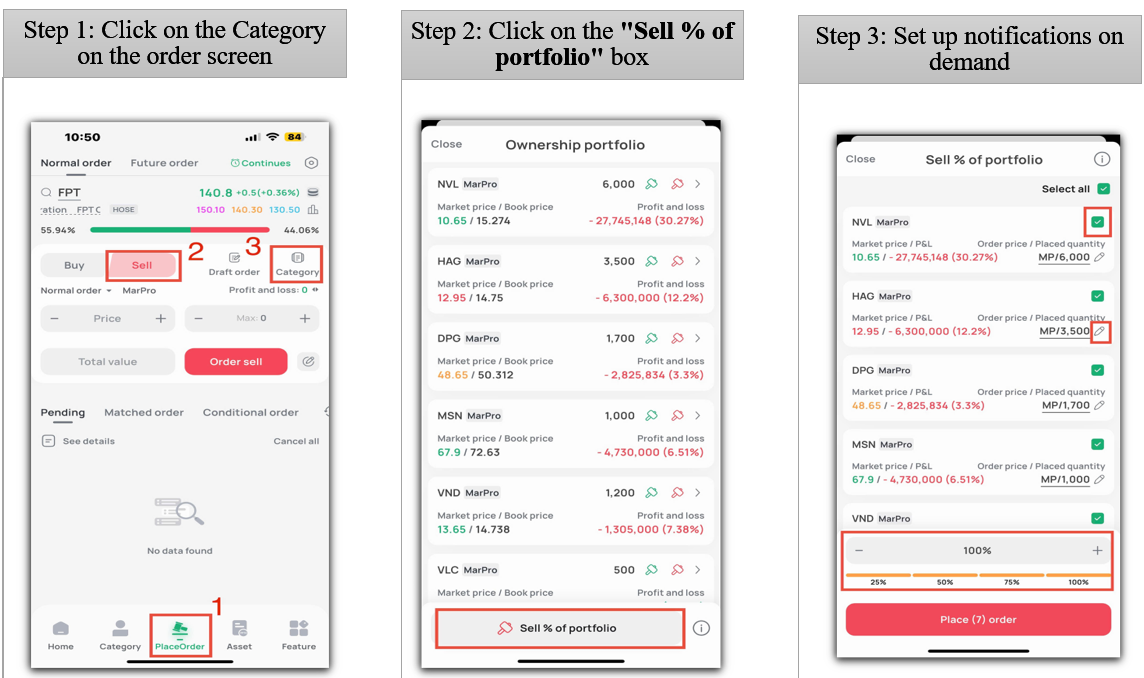
Notes:
- Volume: Volume is rounded to the selected percentage (default is 100%)
- Price: Price will be automatically filled according to exchange and session
- HNX: MTL/ATC price corresponds to Continuous/ATC session
- HSX: ATO/MP/ATC price corresponds to ATO/Continuous/ATC session
- UpCom: Floor price
- You can change the default information (Account ratio, stock selection, price/volume entry)
* Conditional order
- From the Order screen -> select the order type as Conditional Order

- Enter order information: Fill in all information fields and click Place Order

- Notes: For Margin account, you need to select Order Type as Cash/Margin
- For Margin Selling: Go to the "Stock Balance" screen to select a selling contract.
- Margin sell orders cannot exceed max volume
- You can open the order book in two ways

* Pending order
- Pending order details: Click on each record to view order details

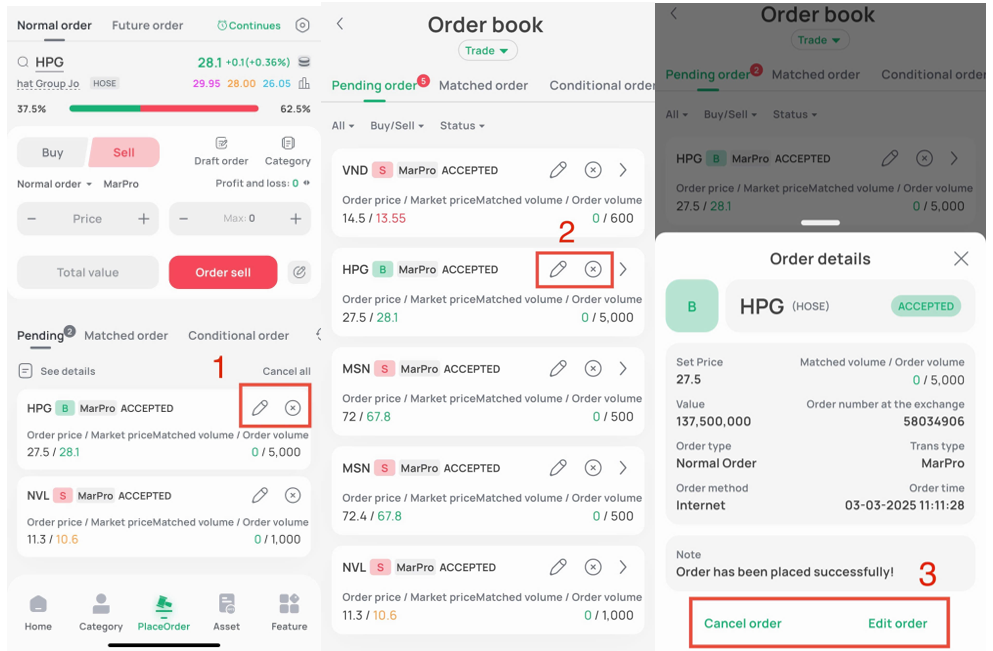
- Cancel/Edit pending order: You can cancel/edit order from one of the following screens:
Note: Button  to edit order and button
 to cancel order
* Matched order
Includes Same day and Past screens

- For the “Same day” screen, it displays the matched orders of the day. You can filter the matched orders by stock, order type All/Buy/Sell by clicking on the icon 

- For the “Past” screen, it displays past orders by time such as one week/ one month/ six months/ one year). You can filter by stock, order type All/ Buy/ Sell and by other time you want to display by clicking on the icon

* Conditional order
- Conditional order tab in the place order screen will only display orders in the Pending for Activated status.
- Conditional Orders tab in the Order Book screen will display conditional orders including all statuses.
* Placed order
Includes Same day and Past screens

For the “Same day” screen, it displays the orders placed during the day. You can filter by stock, order type All/Buy/Sell, money and order status by clicking on the icon

For the “Past” screen, it displays past orders by time such as one week/one month/six months/one year, you can filter by stock, order type All/ Buy/ Sell, money, order status and by other time you want to display by clicking on the icon

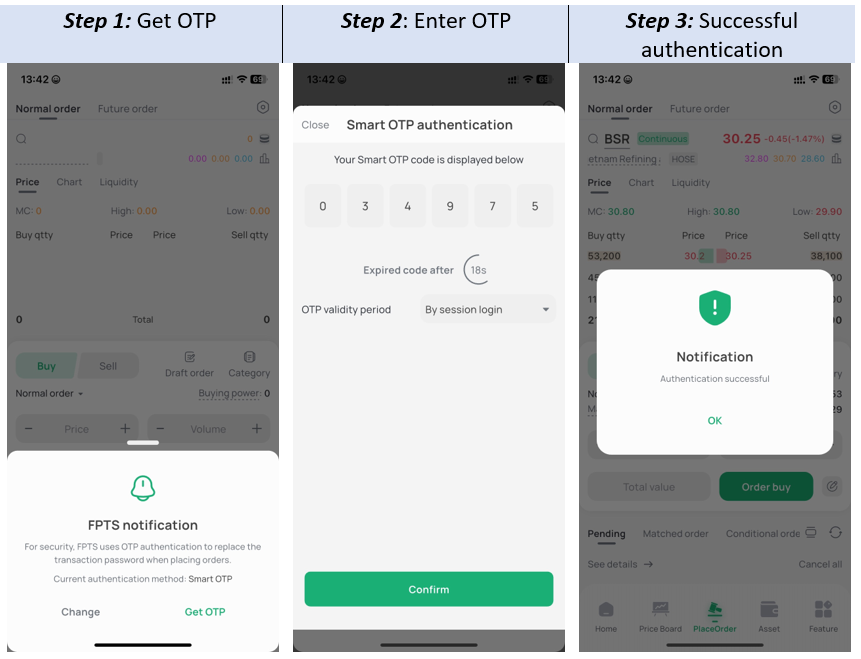
Step 1: When you access the Place Order screen, the system will display a notification to obtain an OTP code for authentication. Click Receive OTP for the FPTS system to send an OTP to the mobile phone number or email address you registered with FPTS.
Enter the OTP code you received, and the screen will display a successful authentication notification.
For customers using SmartOTP to authenticate transactions, enter your registered SmartOTP code to confirm.
Step 2: You can choose one of the following 3 ways to access the Place Order
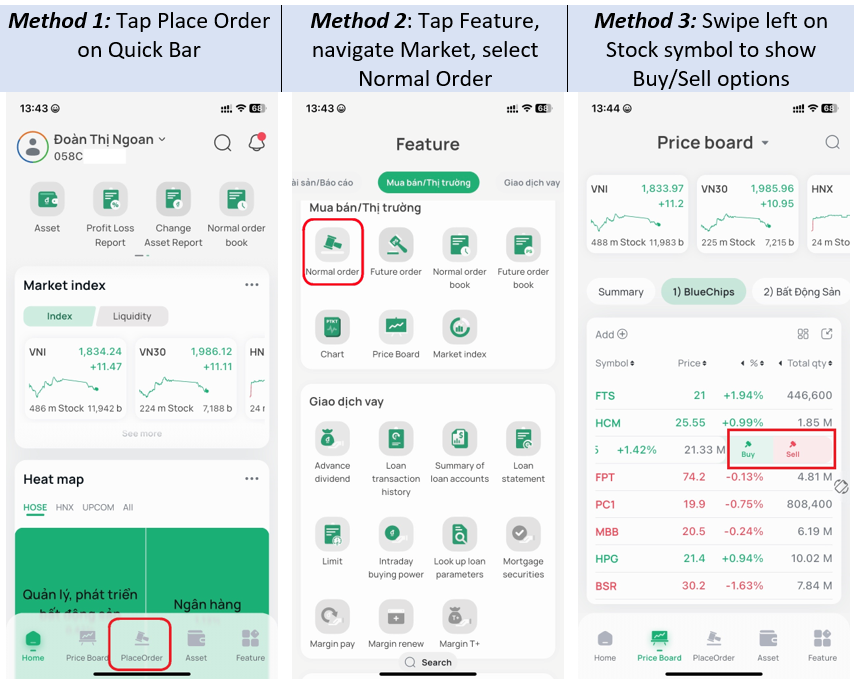
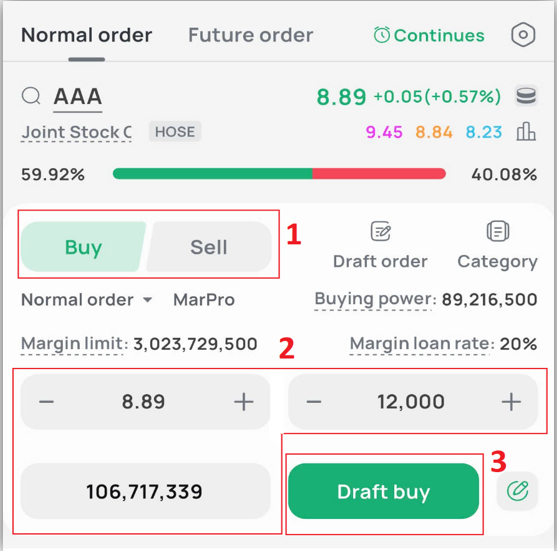
Step 3: Enter the transaction information.
- Enter the securities symbol: this displays the trading information for that symbol during the session
- Note: When you access the order-placing screen, the securities symbol field will automatically fill in with your most recently searched symbol, or a default symbol if this is your first login.
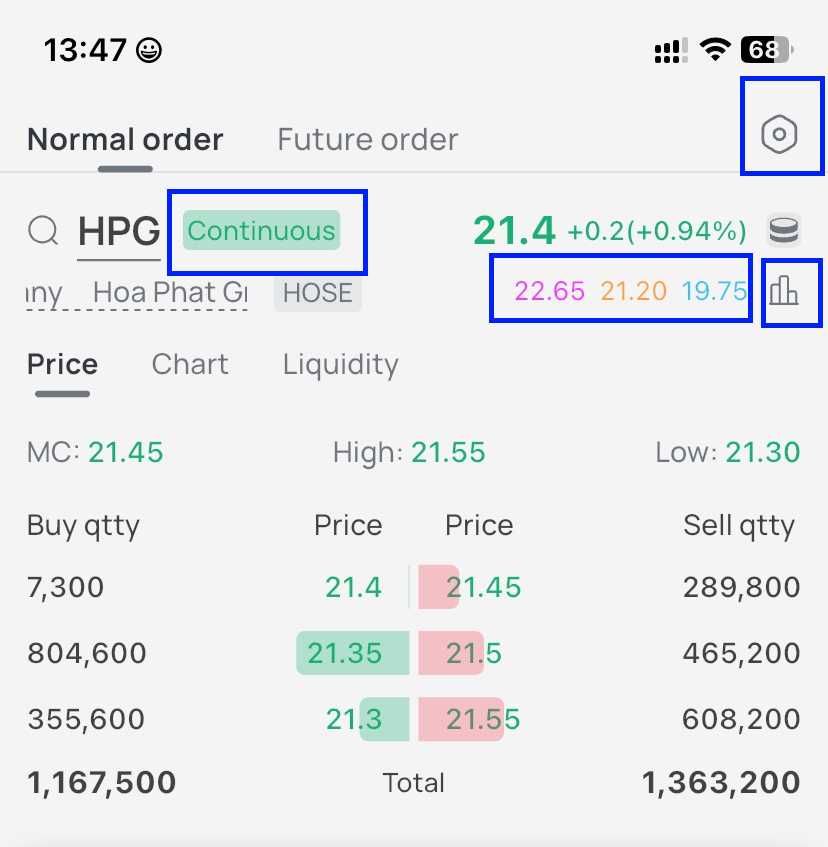
- The information includes:
- Clicking a price field (Market Price, Ceiling/Floor/Reference Price, or the top bid/ask prices) automatically fills that price into the Price field in the order-placing area
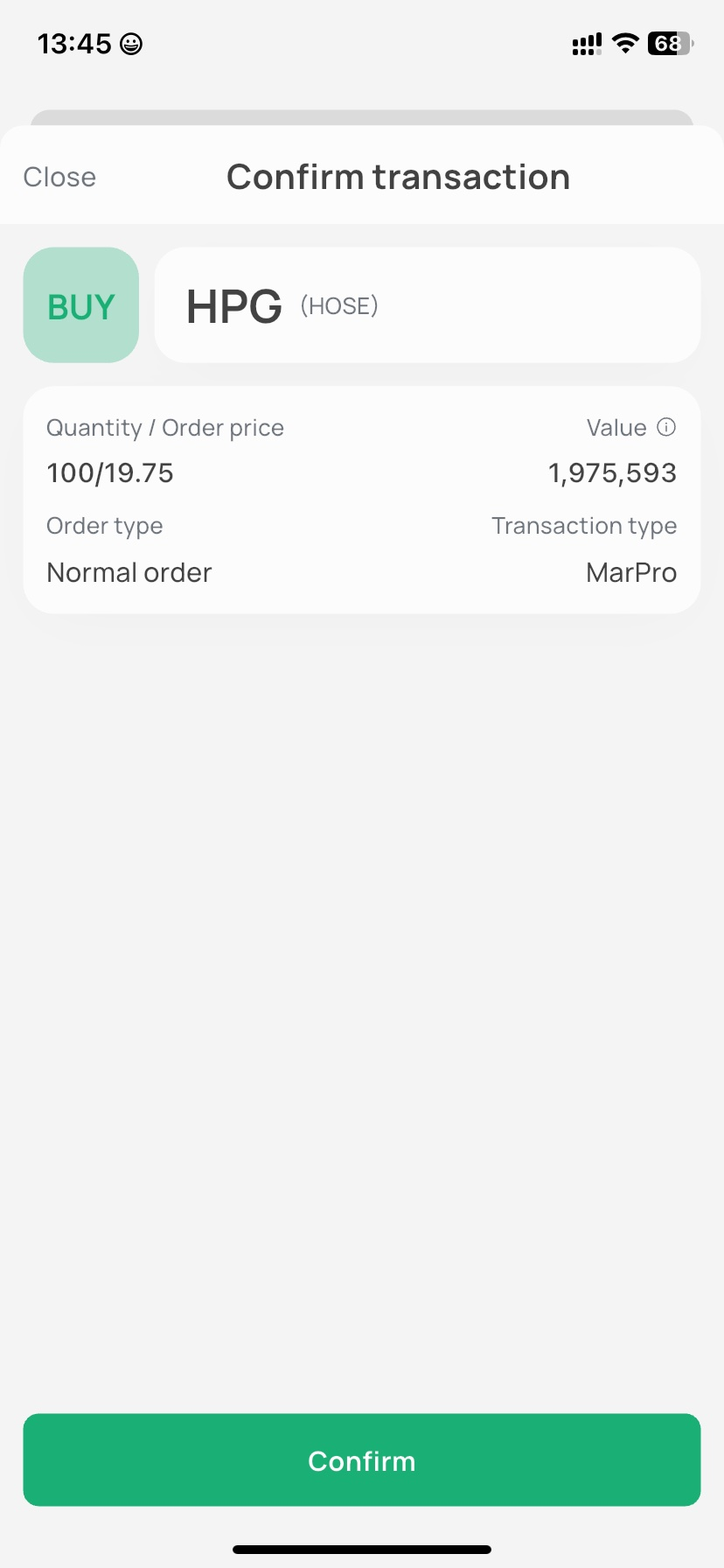
Step 4: Click Place Buy/Sell, and the Confirm Transaction screen will appear. Click Confirm to send the order into the system
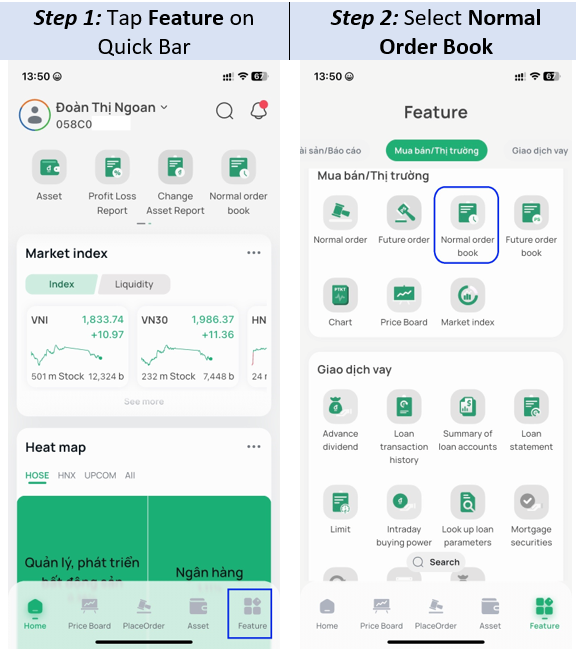
You can view details of your pending orders on the Place Order screen, or view them on the Base Order Book. You can open the order book in one of 2 ways:
* Method 1:
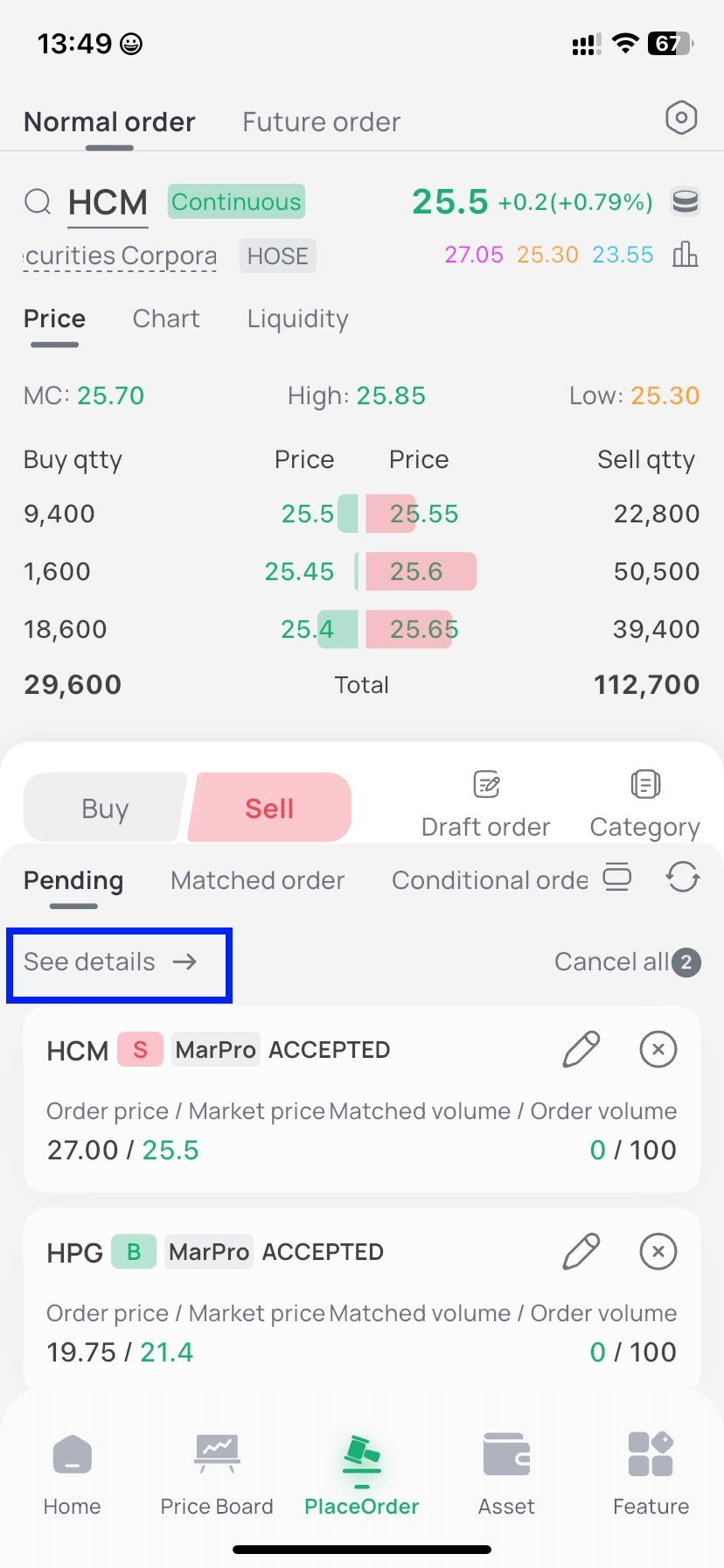
* Method 2:
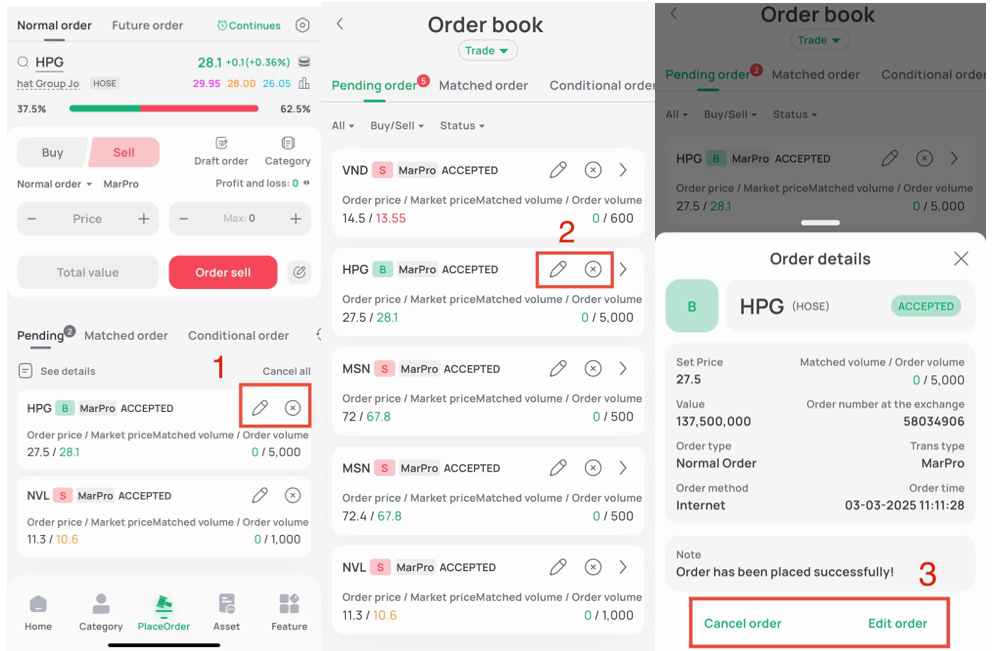
- Canceling/Modifying a pending order: You can cancel/modify an order from one of the following screens
Note: Button  is used to modify an order, and button
  is used to cancel an order
Note:
- Successfully submitting a cancellation/modification request does not mean that the order will be fully canceled/modified. The extent to which a cancellation/modification is executed depends on how much of the original order has already been matched at the time the cancellation/modification request reaches the Stock Exchange's system.
- To check the status of a cancellation/modification, select the Intraday Orders tab.
- You cannot submit another cancellation/modification request for an order while a previous cancellation/modification request for that order is still being processed by the FPTS system.
1. Placing a Conditional Order
Step 1: From the Base Order-Placing screen → select Conditional Order as the order type
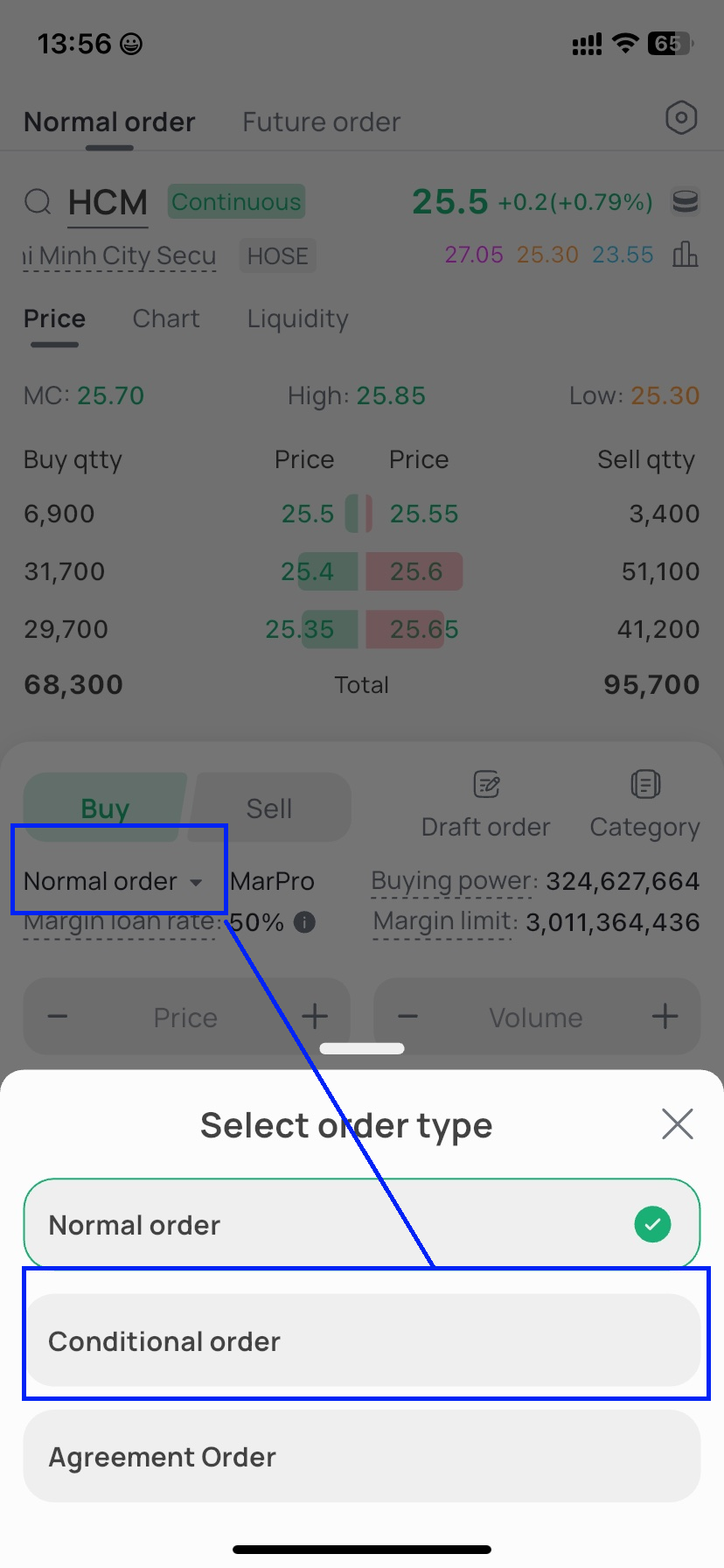
Step 2: Enter the conditional order information
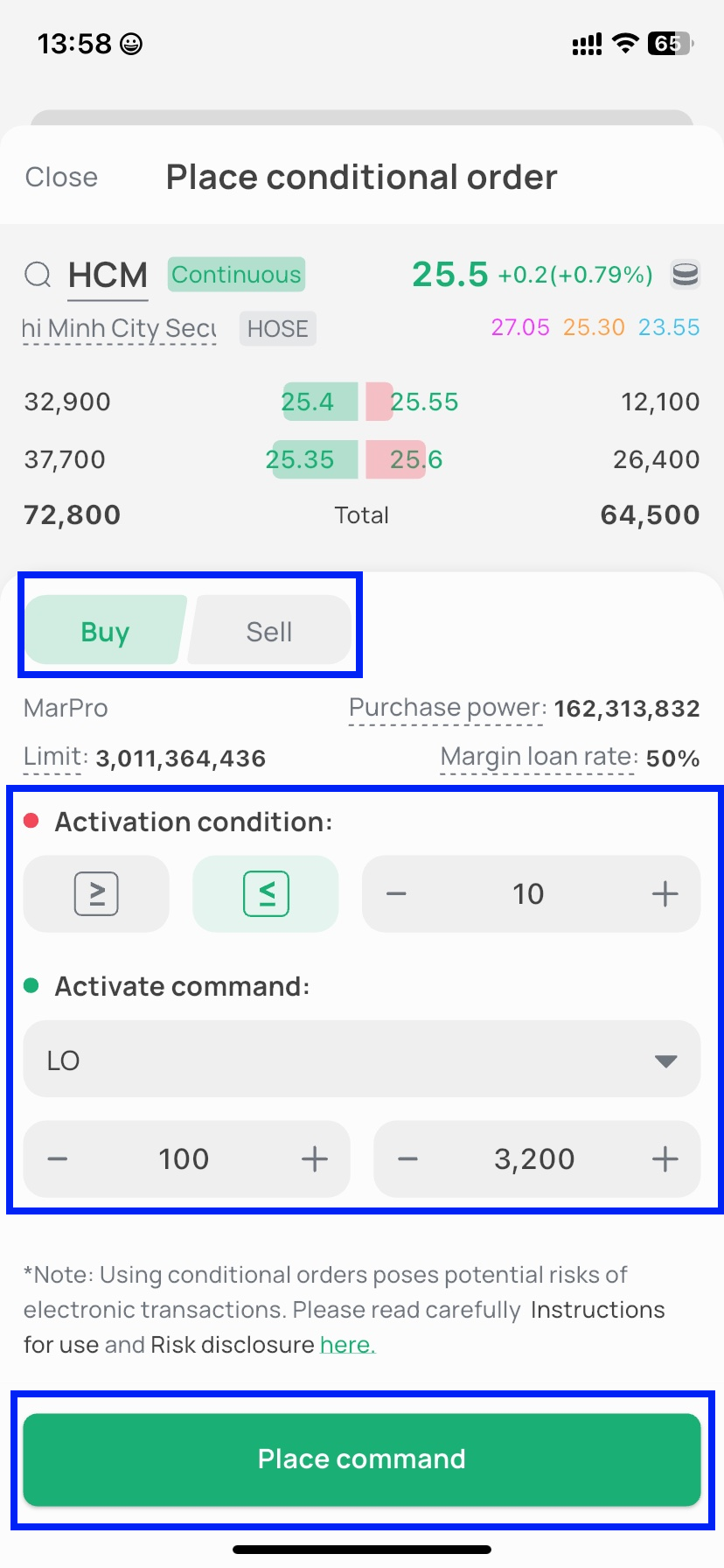
- After entering the basic information for Securities Symbol, Buy/Sell Type, and Volume, you must enter:
- The order's activation condition
- Condition type: select ≤ or ≥
- Condition Price: When the most recent matched price in the market satisfies this condition, the order will be activated.
- Execution Price: this is the price the system will send to the Exchange when the order is activated.
2. Looking Up Conditional Order History on the EzTrade Mobile Trading Application
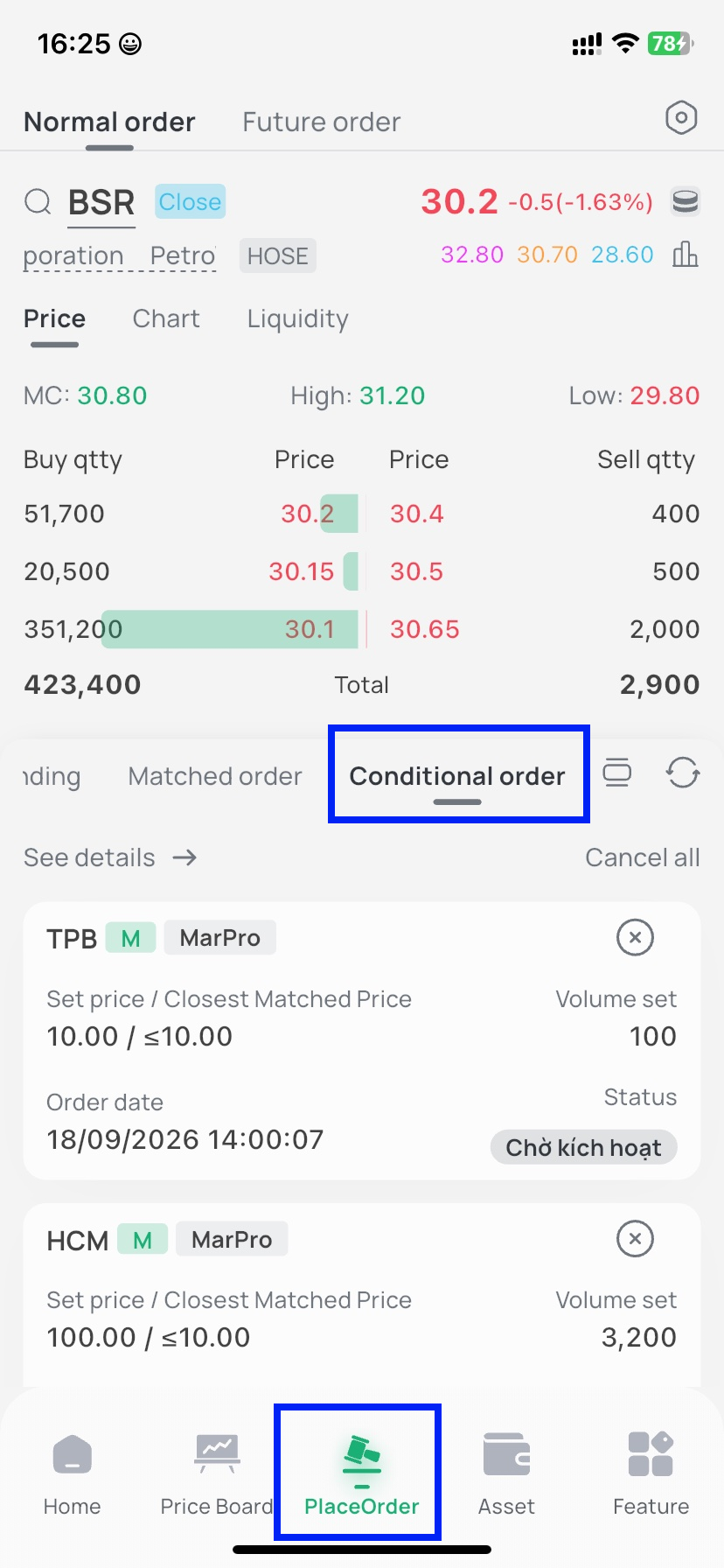
Method 1: On the Conditional Orders screen: Click the Conditional Orders tab to look up information on the orders you have placed.
The Conditional Orders tab on the order-placing screen only displays orders with the status Pending Activation.
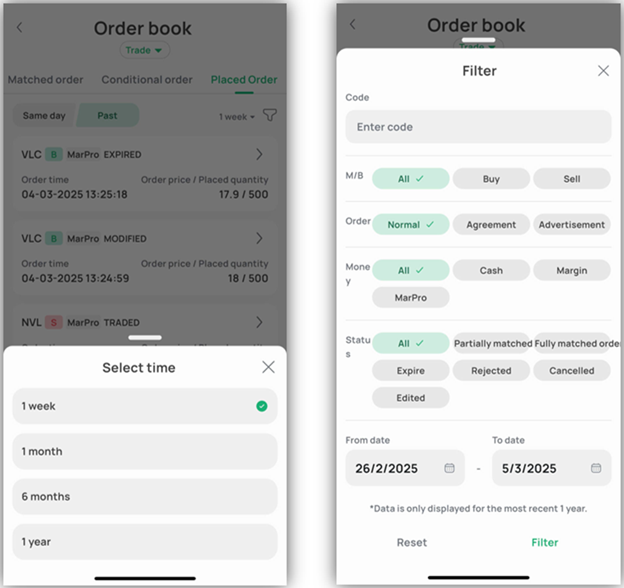
Method 2: From the Home screen, tap the Function List icon, swipe left, select Buy/Sell/Market, tap Base Order Book, then select the Conditional Orders tab.
The Conditional Orders tab on the Order Book screen displays conditional orders in all statuses.
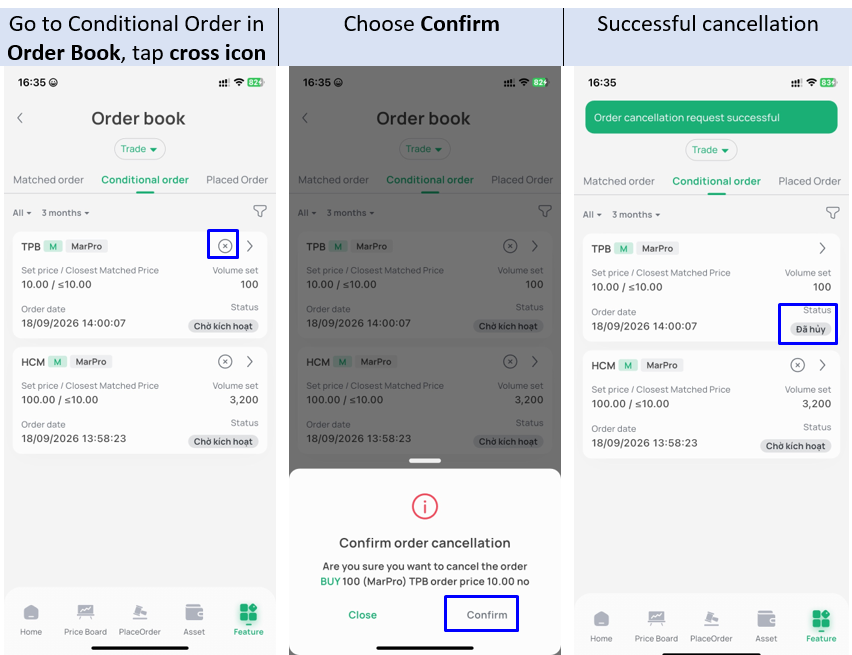
3. Canceling a Conditional Order on the EzTrade Mobile Trading Application
From the Home screen, tap the Function List icon, swipe left, select Buy/Sell/Market, tap Base Order Book, then select the Conditional Orders tab. On the Conditional Orders screen, you can Cancel orders that are pending activation.
Open the EzTrade mobile trading application. Then go to Place Order to enter your order information:
- Securities symbol
- Volume: An odd lot has a volume from 1 to 99
- Price: Odd-lot orders only accept the LO (Limit Order) price type
- The price step, quotation unit, and price fluctuation range for odd-lot securities trading are the same as for board-lot securities
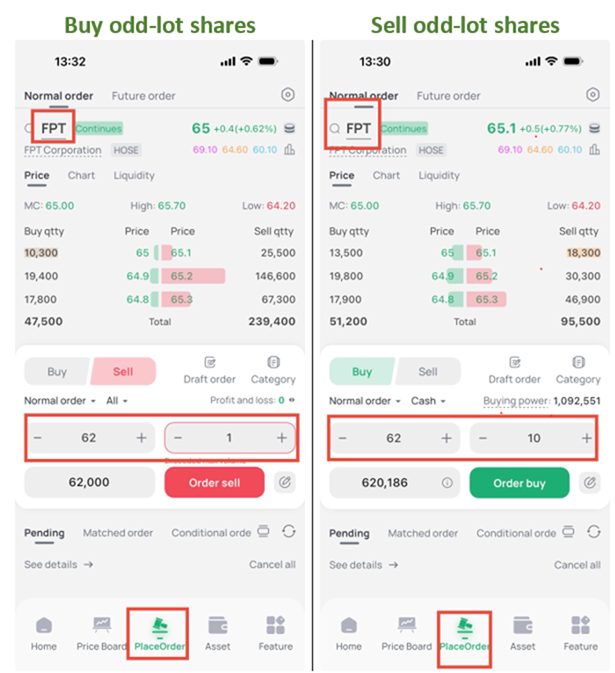
After entering the information, tap Place Buy/Sell to confirm the order.
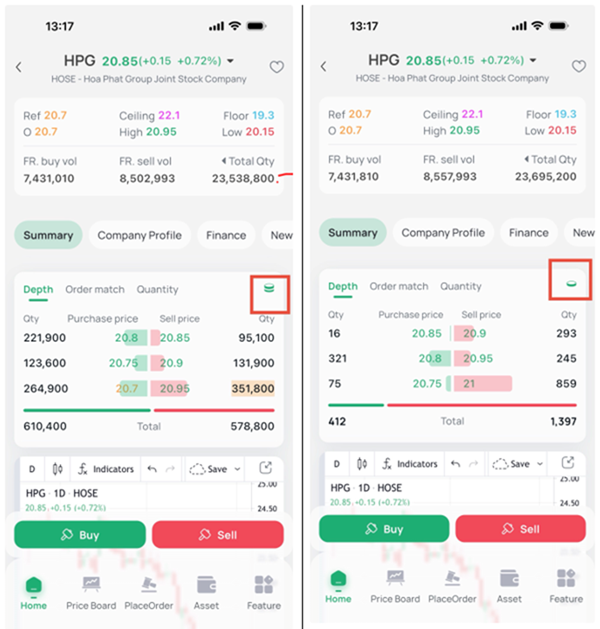
You can view the odd-lot price board on the EzTrade application. On the Home screen, go to the Watchlist, select the securities symbol on the price board, then under the Trading section, you can switch from board lot to odd lot to view the odd-lot price for that symbol.