


You can place derivatives trading orders online via the EzTrade website or the EzTrade mobile trading application
To place an order via the EzTrade website:
From the home screen, select Function List → Place Derivatives Order
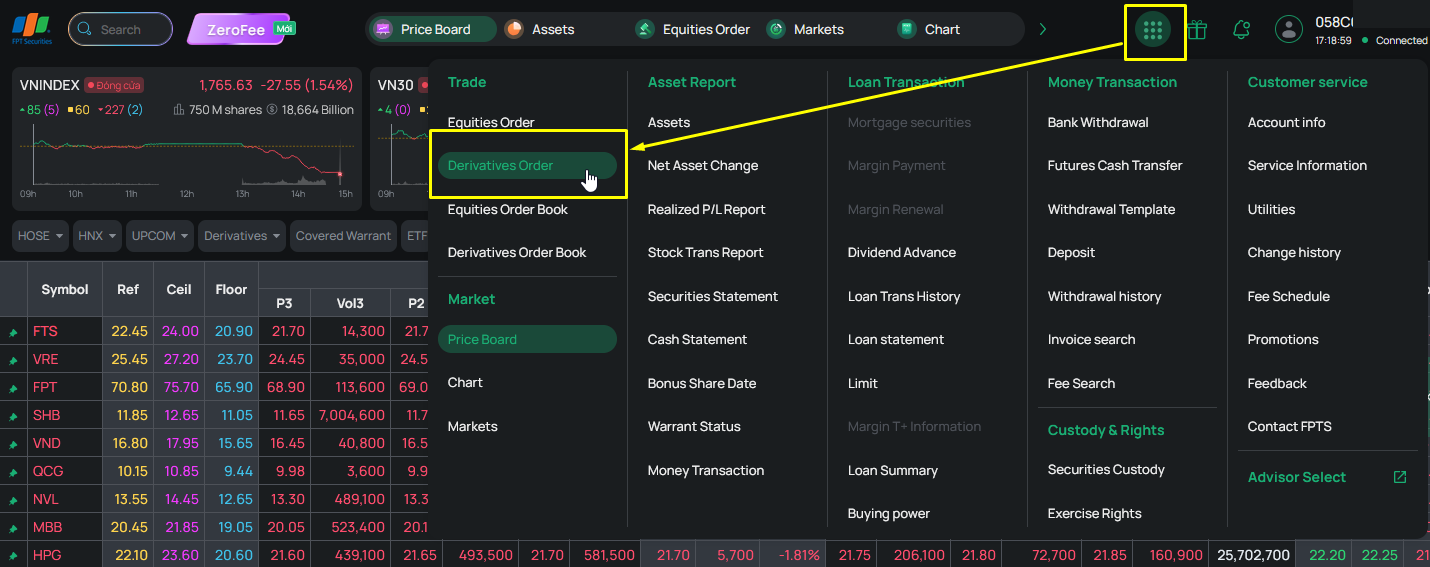
On the derivatives order-placing screen, selecting the Regular Order tab displays the following interface:
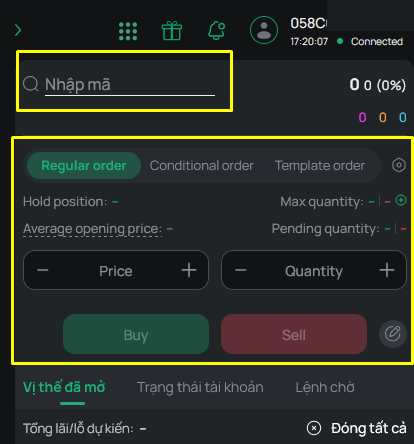
- In the search box in the upper-left corner, enter and select the contract symbol
- Select the Regular Order tab → Enter the Price and Volume → Click the Buy/Sell button to send the corresponding buy/sell order.
- “Volume” field: Enter the volume for your order. Click +/- to increase/decrease the volume
- “Price” field: Select one of the price types: MTL/MAK/MOK/ATO/ATC, or enter a specific price. Click +/- to increase/decrease the price
- You can use the mouse or the Tab/Shift+Tab keys to move between the information fields
Some quick order-entry actions:
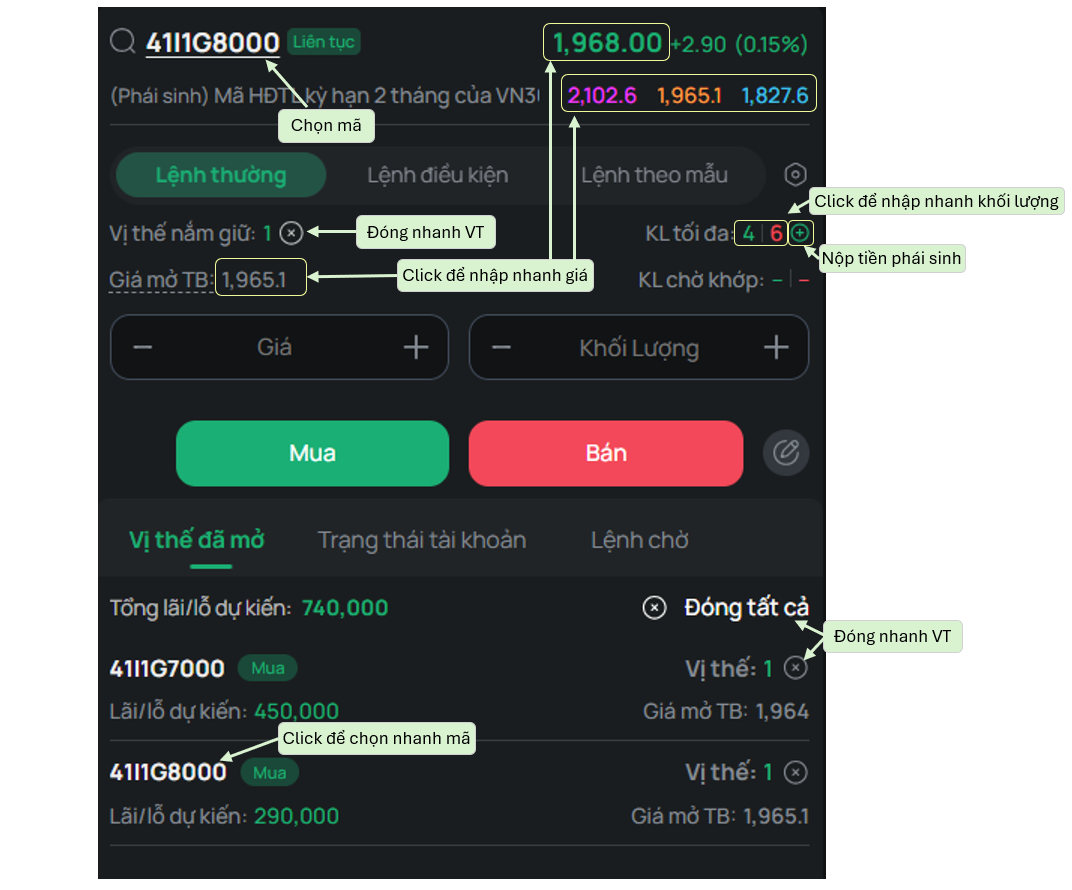
Record Pending Order feature: Turn recording of regular/conditional orders on/off by clicking button  next to the Buy/Sell button. Recorded orders appear in the Pending Order List. On the “Pending Order List,” you can:
- Edit the price and volume of each order
- Delete an order from the “Pending Order List” so it is not sent, by selecting icon  on the corresponding order row
- Record multiple orders to the “Pending Order List”
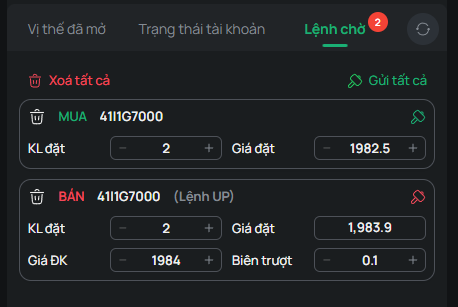
Actions available for the entire Pending Order Book:
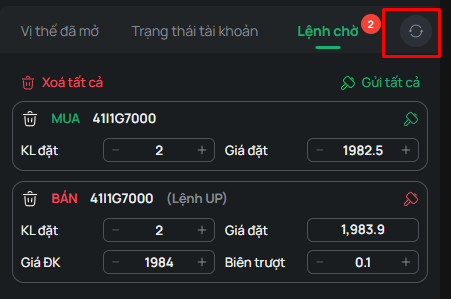
- Refresh button: Refreshes the entire Pending Order Book
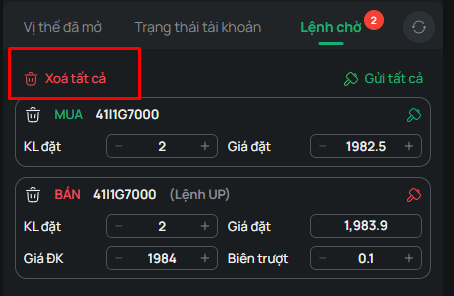
- Delete All button: Deletes all pending order records
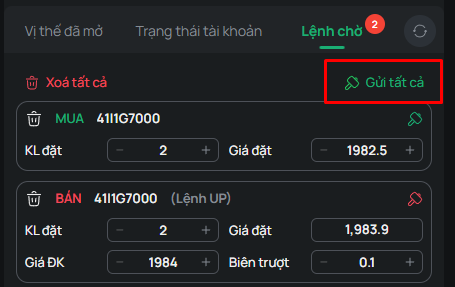
- Send All button: Sends all pending order records.
- Actions available for each record in the Pending Order Book:

+ Delete function (1): Used to delete a record
+ Send order function (2): Used to send the current order. After the order is sent, this button will show the sending status, specifically:
 : The order was successfully received
 : An error occurred while sending the order
+ Functions (3) and (4): Edit the Volume and Price of a recorded order
You can access the Derivatives Quick Order-Placing screen from the Price Board or from the Asset Report
From the Price Board, there are 2 ways to access it:
Method 1: Access from the Derivatives Price Board
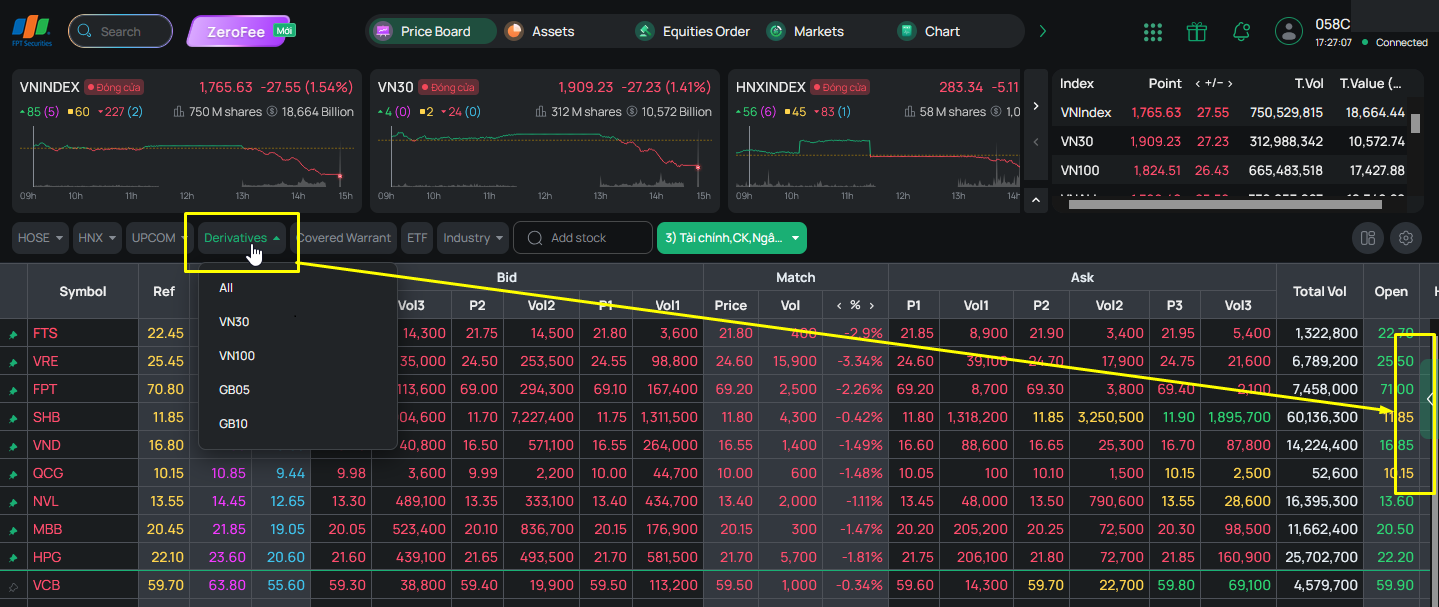
Method 2: Double-click the bid/ask price on the Derivatives Price Board

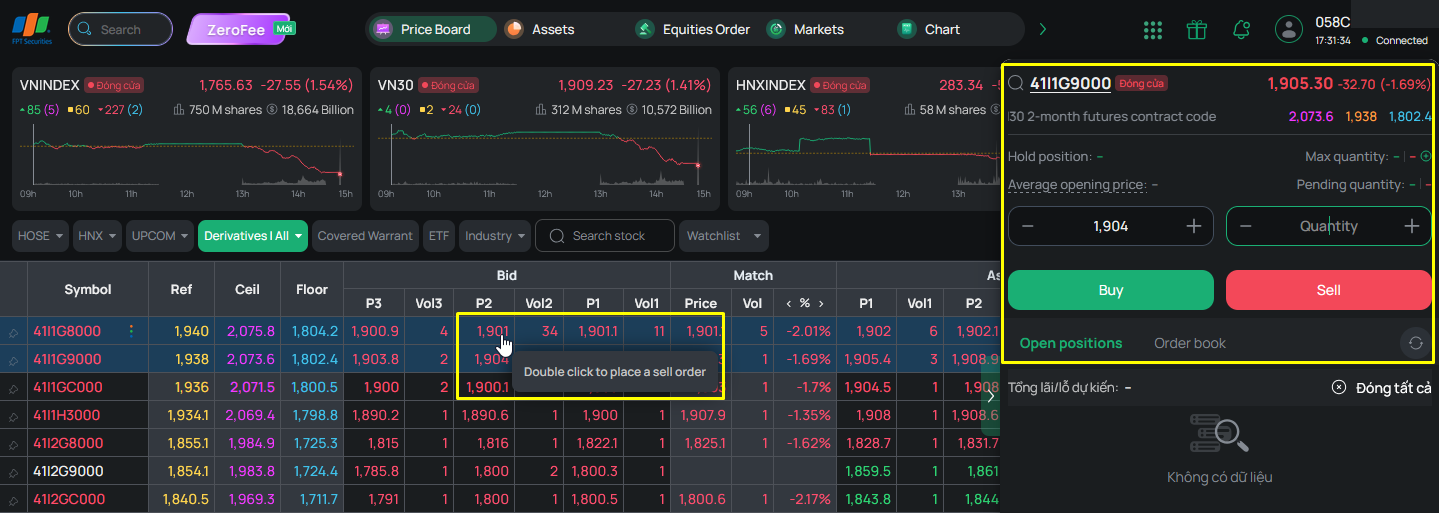
From the Asset Report, you can access the quick order-placing screen in 4 ways:
Method 1: Access from the Derivatives Assets screen
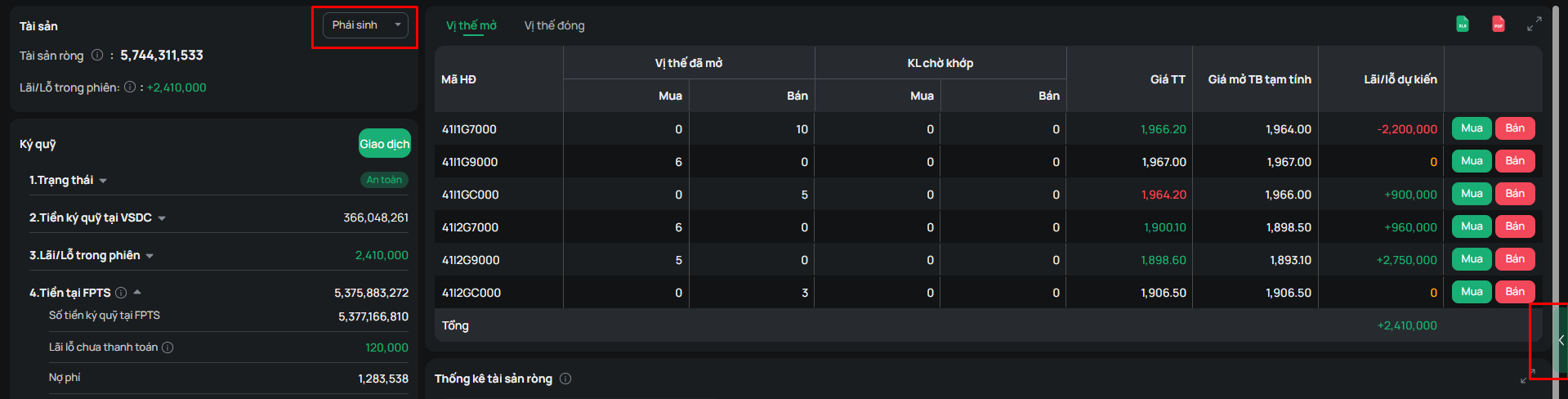
Method 2: Place a Buy/Sell order from the Open Positions table
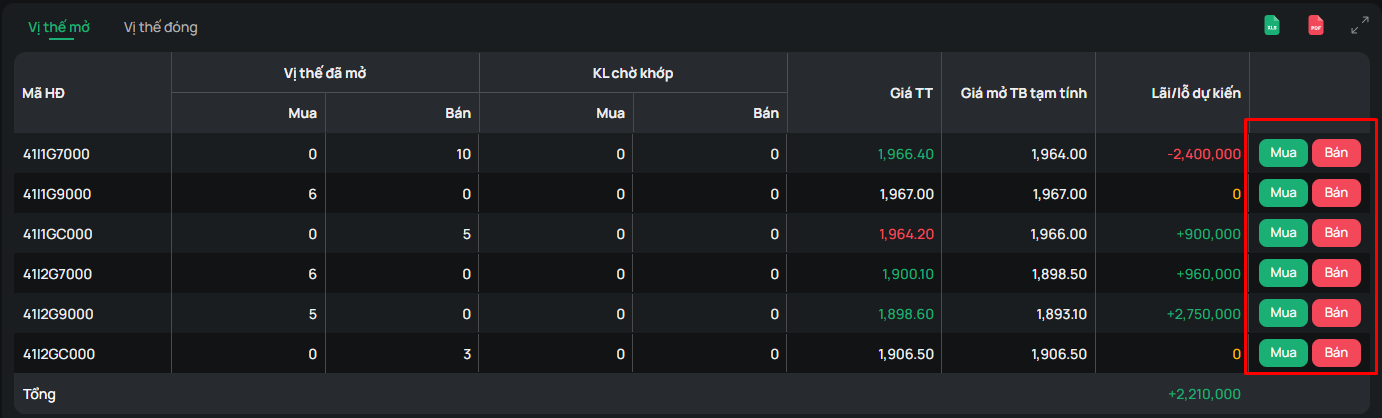
Method 3: Click the Market Price in the Open Positions table
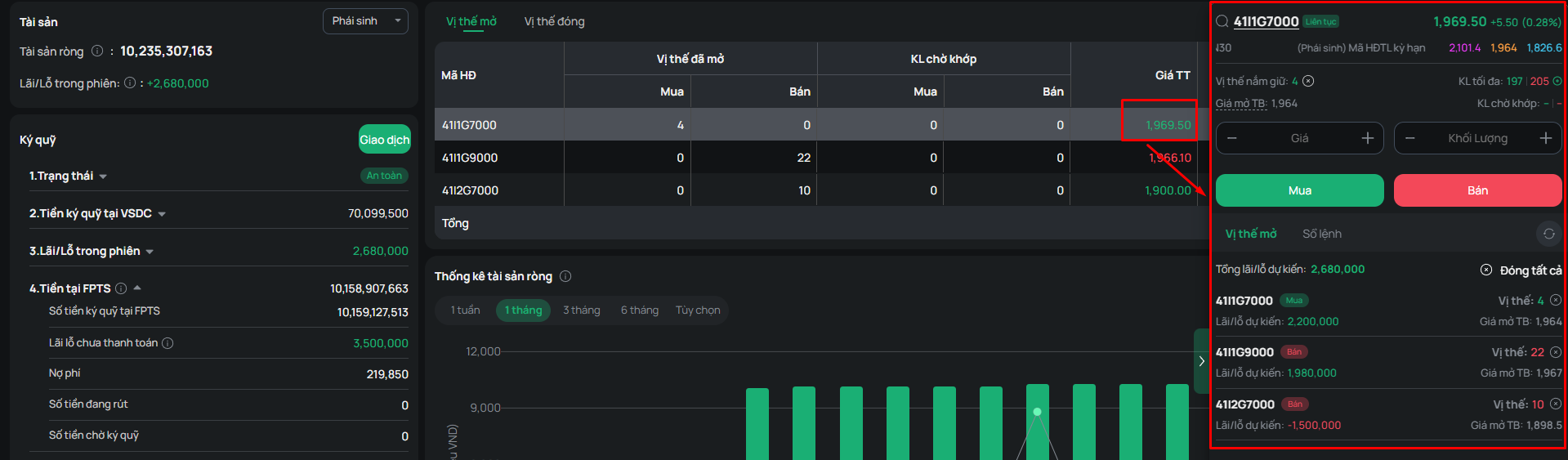
Method 4: Click the ‘Trade’ button
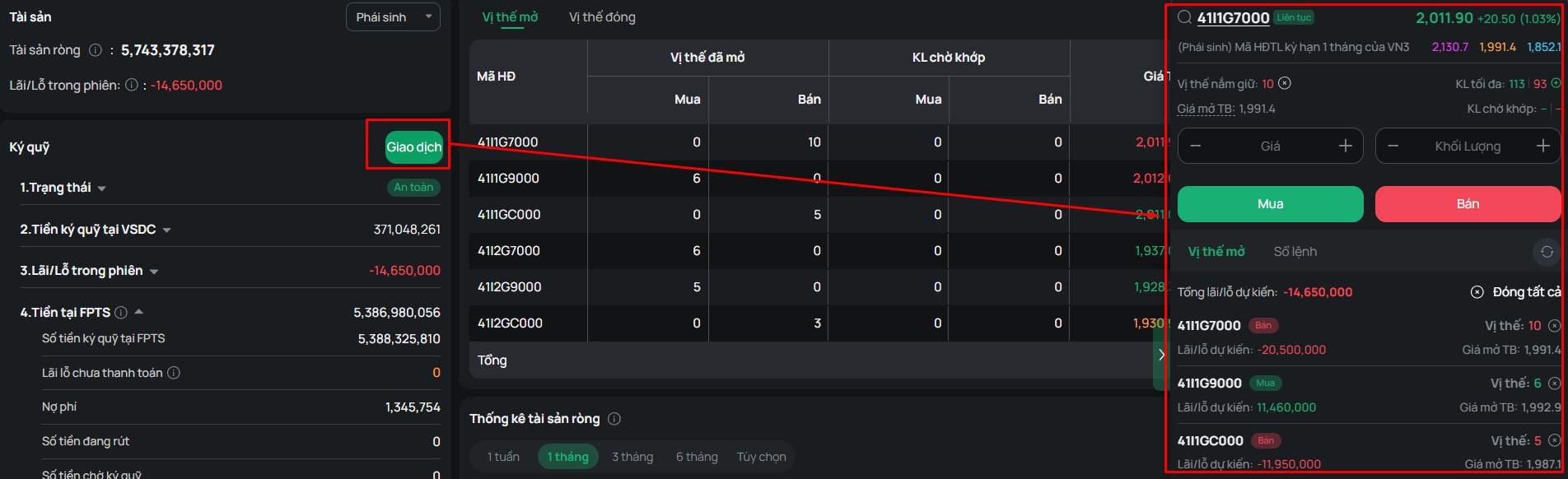
When using the Derivatives Quick Order-Placing screen, please note:
- The current quick order-placing screen only allows placing regular orders.
- Configuring the order-placing screen: To configure the order-placing screen, you must open it from the Full Order-Placing screen; the configuration will apply to both the Full Order-Placing screen and the Quick Order-Placing screen simultaneously.
- In addition, this screen retains the basic information needed for placing orders and allows some of the same functions as the full order-placing screen, including:
- Quick Close Position function
- Quick Deposit function
- Open Positions tab
- The Order Book tab on the Derivatives Quick Order-Placing screen includes 3 types of order books:
- Pending Order Book: Contains information about your orders awaiting a match
- You can click icon
 to edit the Price or Volume of the order.
- You can click icon
- You can click icon
 to cancel the pending order.
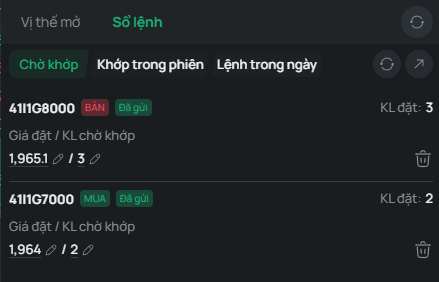
Orders Matched in the Session Book: Contains information about orders matched during the session. Orders are divided into two separate groups: Buy orders and Sell orders.
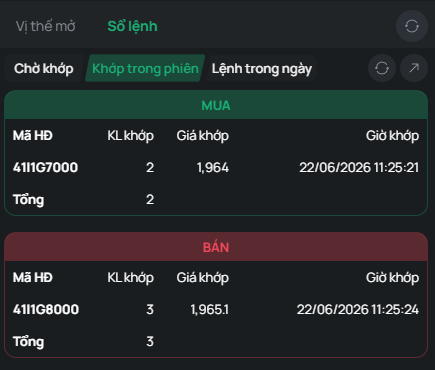
Intraday Order Book: Contains information about orders placed during the day
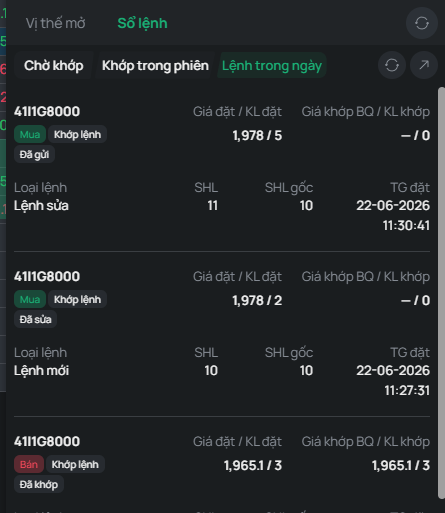
In addition, the Order Book tab has 2 function buttons: a Refresh button and a Navigate to Order Book button:
+ Refresh button: Refreshes the order book data
- Refresh-all button:
- Refresh-current-screen button:
- Navigate to Order Book button: Navigates you to the Full Derivatives Order Book screen
To help you place orders quickly and reduce the number of steps during trading, the system offers a Template Order feature that lets you create order templates in advance. Notably, in the Order Template, you can create a Double Order with a predefined expected profit range.
On the derivatives order-placing screen, selecting the Template Order tab displays the following interface:
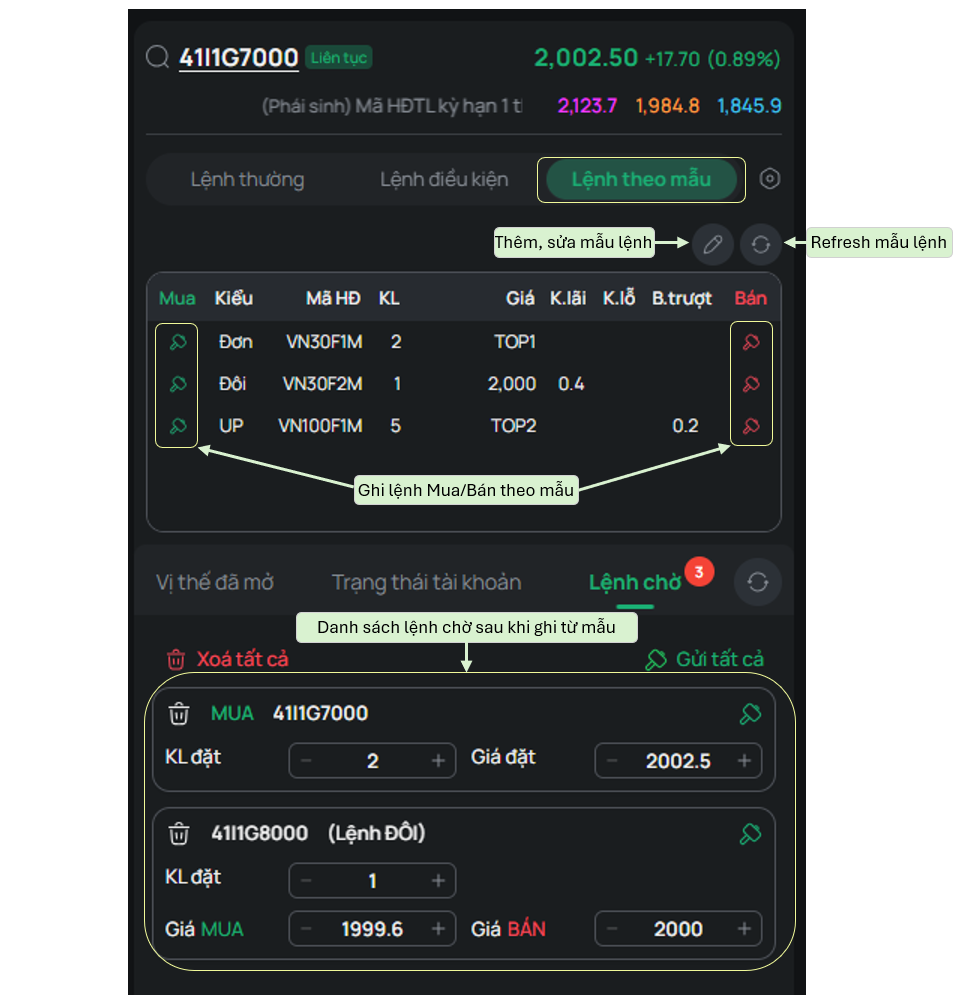
Click button  to access the screen for creating and editing Order Templates as needed
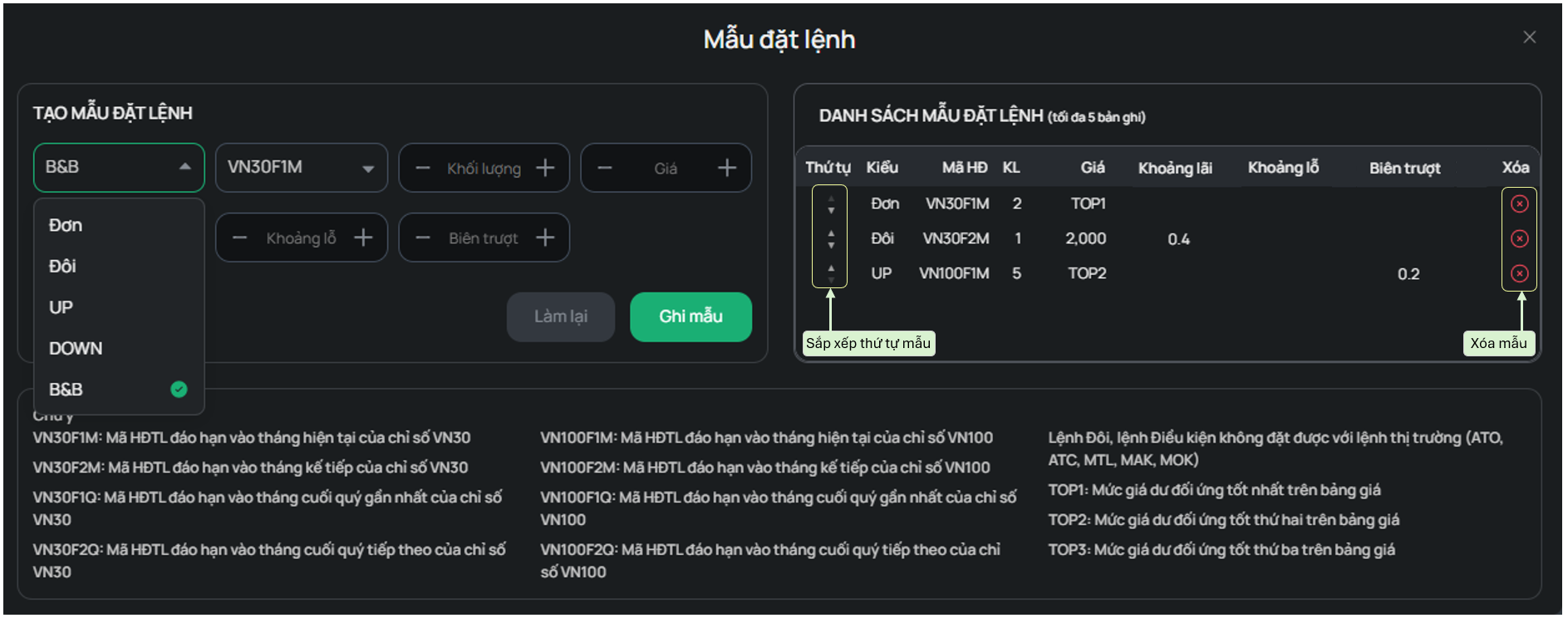
The information fields include:
- Order type: Select Single Order/Double Order/UP Order/DOWN Order/B&B Order
- Contract symbol: Select the futures contract symbol VN30F1M/VN30F2M/VN30F1Q/VN30F2Q
- Volume
- Price: Select one of the price types MTL/MAK/MOK/ATO/ATC/TOP1/TOP2/TOP3, or enter a specific price
- Profit Range: Enter your expected profit level (applicable to Double Orders and B&B Orders)
- Loss Range: Enter the loss level you can tolerate (applicable to B&B Orders)
A conditional order is an order that waits to be activated at a predetermined Activation Price. There are 4 types of conditional orders (UP, DOWN, OCO, B&B), depending on your purpose (taking profit, cutting loss, etc.) and the market price trend (up/down), giving you flexible conditional order options for more convenient trading when you cannot monitor the price board continuously
On the derivatives order-placing screen, selecting the Conditional Order tab displays the following interface:
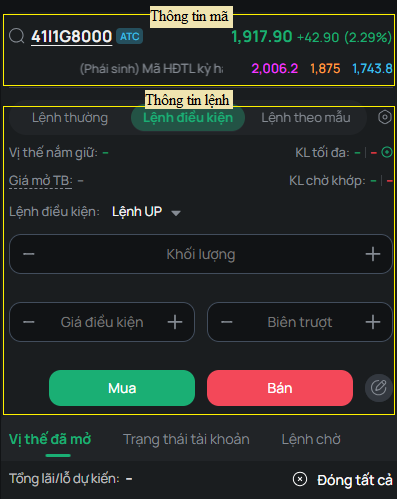
Step 1: Select the conditional order type and enter all the required order information. Enter the following input fields:
- Conditional order type: UP/DOWN/OCO/B&B
- Order type: Buy/Sell
- Securities symbol: Futures contract symbol
- Volume (≤ the maximum volume you can place for that symbol). You can quickly enter the Volume field by clicking the maximum openable volume for each side, Buy/Sell
Price fields:
- Enter the “Price,” “Condition Price,” “Take-Profit Price,” and “Slippage Margin” fields corresponding to each conditional order type
- You can quickly enter the Condition Price field by clicking the market price/Ceiling/Floor/Reference/average opening price in the order-placing area, or by double-clicking the bid/ask prices in the price board area
- Activation information: Varies depending on the selected Condition Type
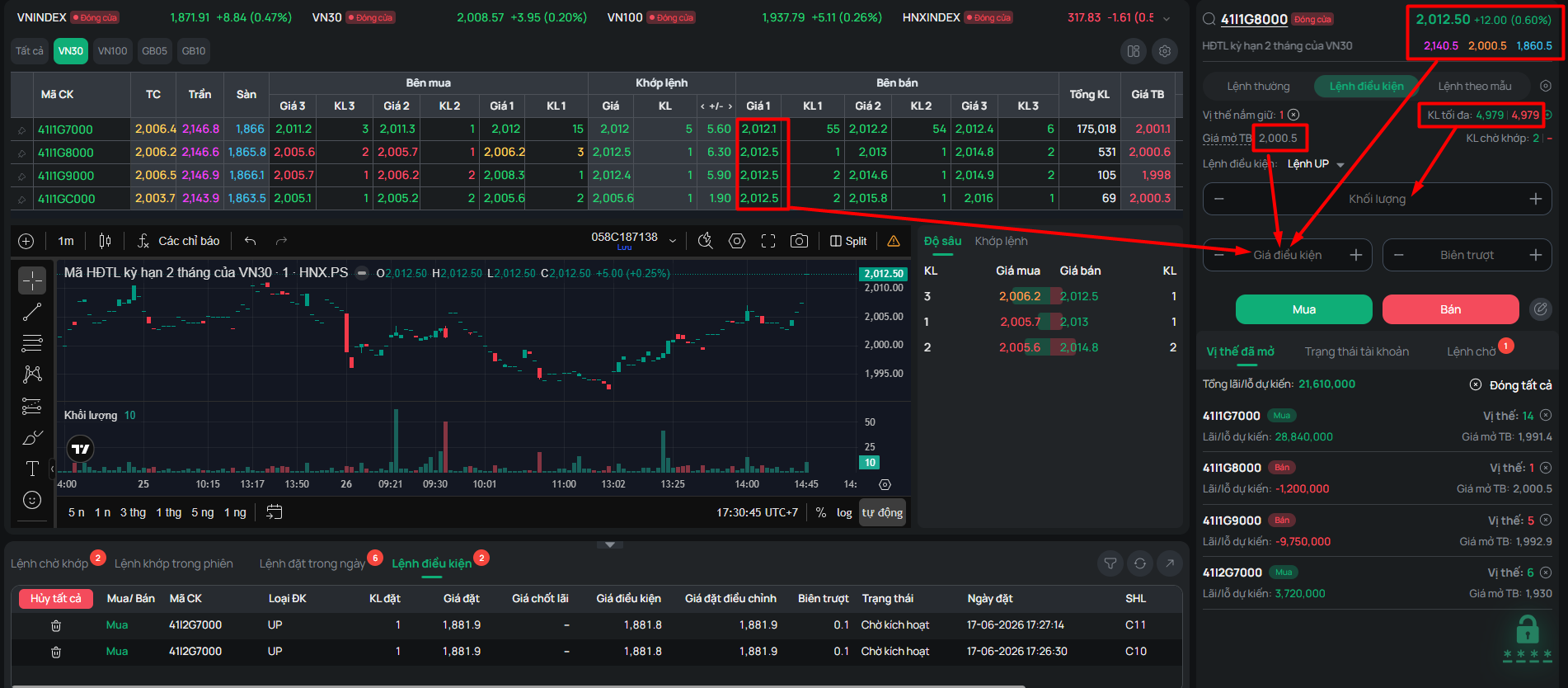
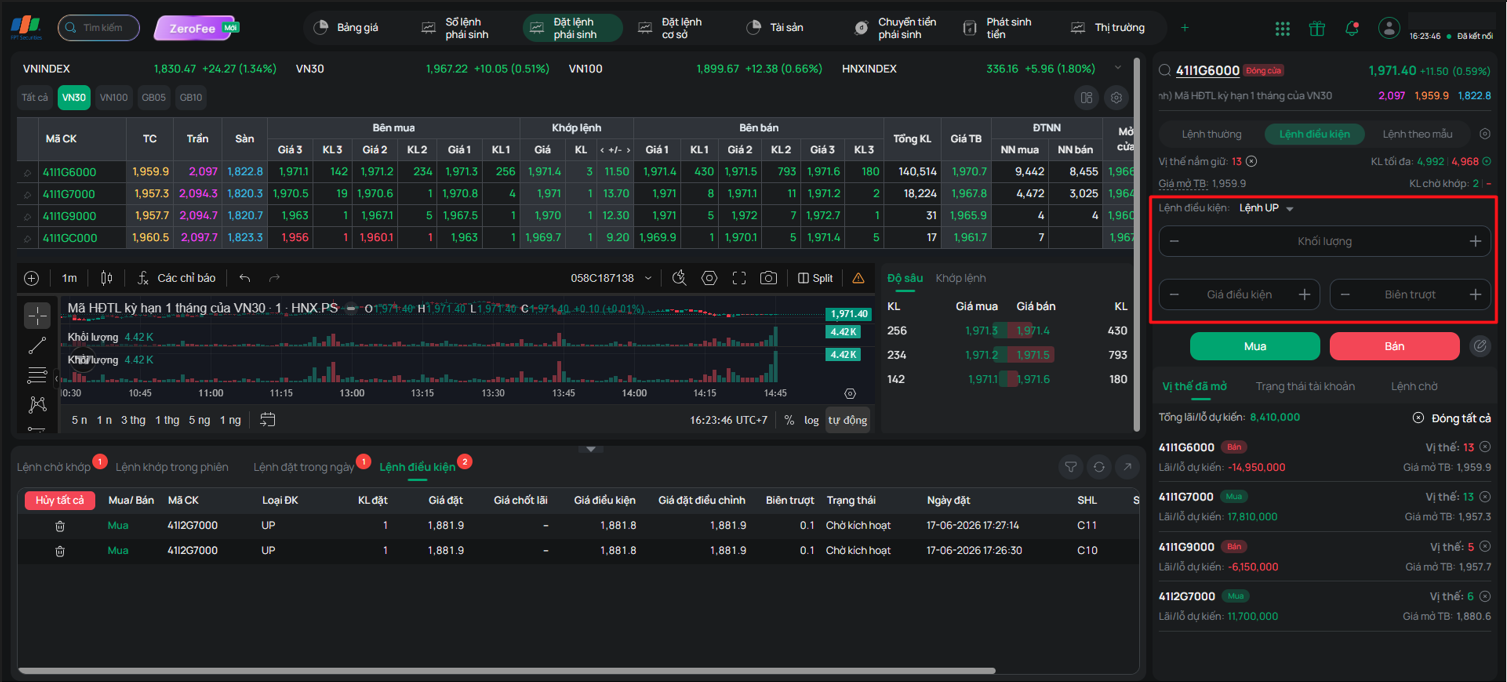
UP/DOWN Order:
- Trigger Price (Conditional Price): The price that triggers the order.
- Entered price must not exceed the ceiling/floor price limits of the contract during the trading session.
- The tick size for the trigger price is 0.1
- Customers can quickly adjust the order price using the up/down arrows.
- Slippage Margin: The increase/decrease distance (depending on Buy/Sell order) of the actual limit price relative to the Trigger Price, designed to improve execution probability.
- Slippage value must be greater than or equal to 0
- The step of slippage value must be a multiple of 0.1
- Customers can quickly adjust the price using the up/down arrows.
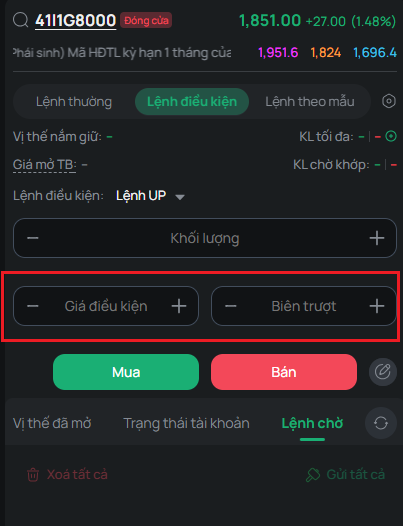
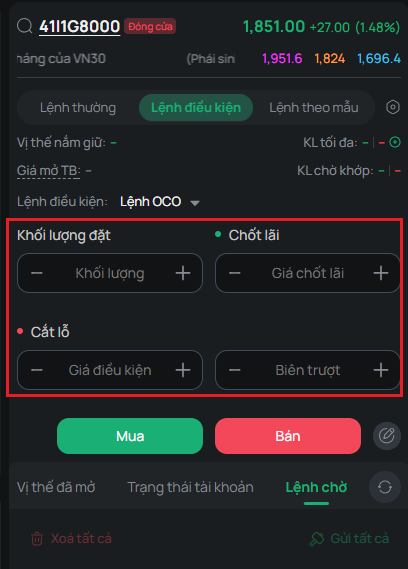
OCO Order (One-Cancels-the-Other):
- Take-profit price: The target price expected to take profit on the current open position.
- Conditional price: The price that triggers the stop-loss order.
- Slippage margin: The increase/decrease distance (depending on Buy/Sell order) of the actual stop-loss limit price relative to the Trigger Price, designed to improve order execution probability.
Notes:
- For Buy OCO Orders: Trigger price must be greater than take-profit price.
- For Sell OCO Orders: Trigger price must be less than take-profit price.
- Take-profit price, trigger price, and the actual limit price of the stop-loss order must remain within the ceiling-floor price range of the contract for that trading session.
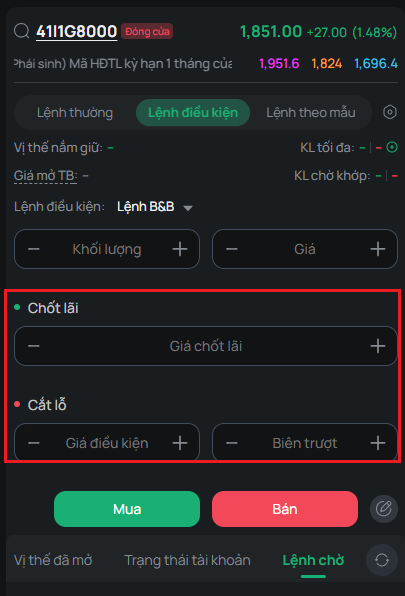
B&B Order (Bull & Bear):
- Price: The price of the primary B&B order used to open a new position.
- Take-profit price: The target price expected to take profit on the current open position.
- Trigger price: The price that triggers the stop-loss order.
- Slippage margin: The increase/decrease distance (depending on Buy/Sell order) of the actual stop-loss limit price relative to the Trigger Price, designed to improve stop-loss order execution probability.
- Notes: Base order price, take-profit price, trigger price, and the actual limit price of the stop-loss order must remain within the ceiling-floor price range of the contract for that trading session.
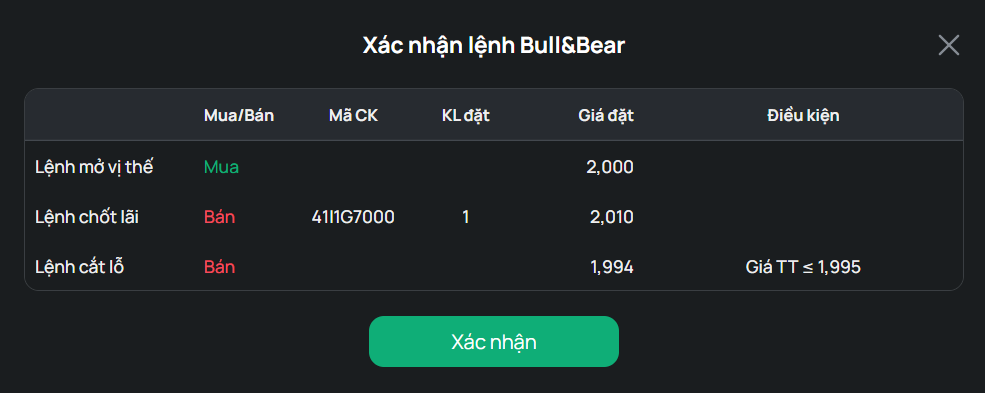
Step 2: Select Buy or Sell to go to the order confirmation screen. Check the order information and click to confirm Buy/Sell
While an order has not been fully matched, you can cancel or modify it on the Derivatives Pending Order Book
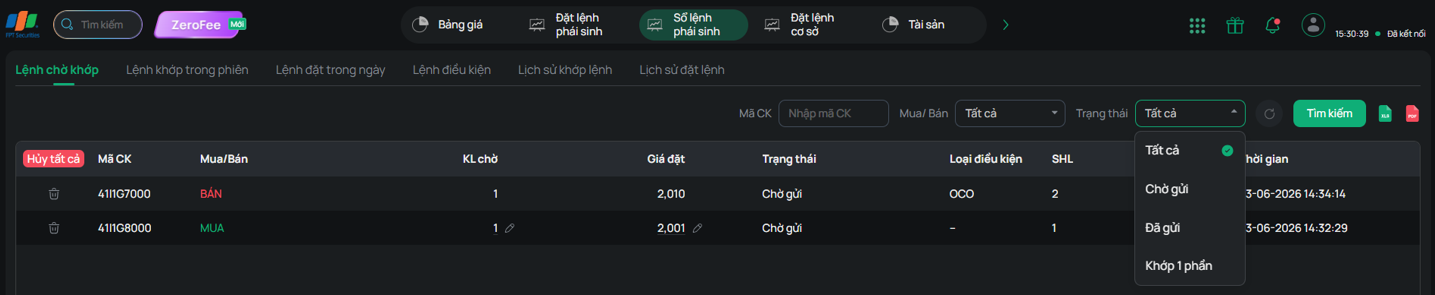
- Click icon  to edit a pending order, or click icon
  to cancel a pending order.
- Select “Cancel All” to cancel all pending orders in the order book.
- You can use the filter by Securities Symbol, Buy/Sell type, and order status to display orders as needed.
If you want to place a negotiated derivatives order, please contact FPTS via the hotline 1900 6446, ext. 3, for further assistance