


Conditional Order
The EzStopLoss conditional order is a tool that allows you to place Buy/Sell securities orders with conditions you define in advance. When the order's activation condition is met, your order is automatically submitted to the FPTS system and checked against your cash/securities balance before being sent to the Stock Exchange
You can place a conditional order online via the EzTrade website or the EzTrade mobile trading application.
To place a conditional order via the EzTrade website, from the vertical or horizontal order-placing screen:
- Select from the vertical layout
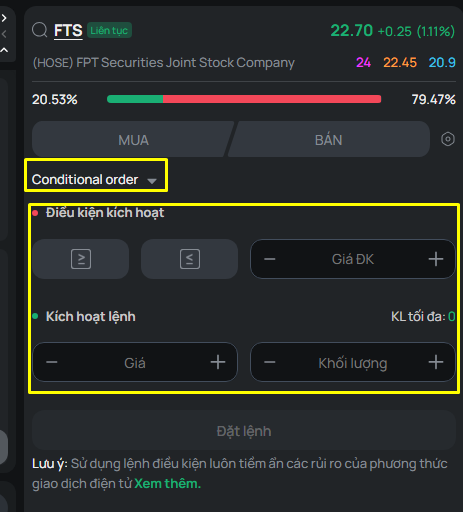
- Select from the horizontal layout
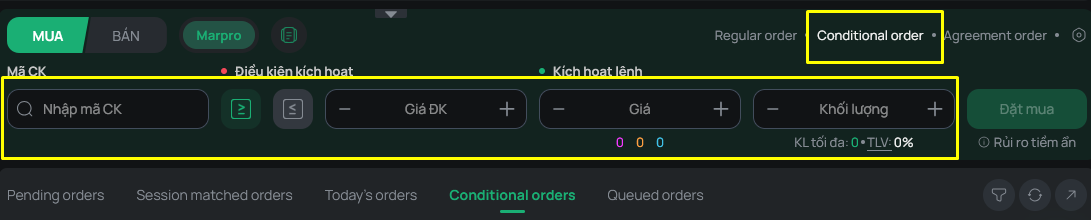
On the Conditional Order screen, select the order type you want to place and enter the order information:
- Buy/Sell type – Securities symbol – Volume – Margin type (if applicable)
- Set the order's condition (in the “Activation Condition” area of the order-placing section): You must select:
+ Condition type (≤, ≥) depending on your needs.
+ Condition price: This price will be used as the basis for activating the order.
- Set the Execution Price (in the “Order Activation” area of the order-placing section): this is the price the system will send to the Exchange when the order is activated.
+ There are 3 advanced order price options to give you more choices: When the order is activated, the system will automatically send the corresponding price to the Exchange based on this price type, specifically:
- Market price: Depending on the exchange and the trading session at that time, the system will automatically send the order at the corresponding ATO/MTL/ATC price.
- Ceiling price: The ceiling price of the securities symbol for that trading session.
- Floor price: The floor price of the securities symbol for that trading session.
After entering the order information, click Place Buy/Place Sell as applicable, confirm the OTP, and send the order
You can review your placed orders in the Conditional Order Book
Note: For a Sell order on a Margin account, you must select the Cash/Margin type:
- For the Cash type:
+ The stock balance section will only display records of the Cash type
+ The sell volume will not be capped at the maximum sellable volume
- For the Margin type:
+ The stock balance section will only display records of the Margin type
+ You can choose to sell multiple margin contracts at the same time
+ Or you can use the Automatic Quantity-Splitting feature:
- Feature off: You must select the contracts in the stock balance section and enter the volume for each record.
- Feature on: You enter the total volume you want to sell → the screen will display the volume allocated across the securities contracts below the stock balance section, according to the following rule: Contracts with an earlier maturity date are prioritized.
+ Sell volume: cannot exceed the maximum sellable volume for each contract
2. Canceling/Modifying a Conditional Order
You can cancel/modify a conditional order online as follows:
- Before activation, a Conditional Order can be canceled on the Conditional Order Book screen: search for the order you want to cancel, select it, and click icon  .
.

- After activation and once it has entered the FPTS system, a Conditional Order behaves like a regular order and can be canceled/modified in the same way as a regular order (if it has not been fully matched).
3. Conditional Order Book
You can look up all conditional orders on the Conditional Order Book screen (in both the mini order book and the full order book)
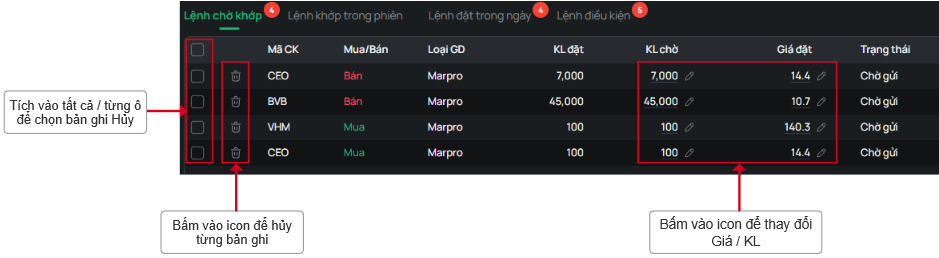
Order status:
- Pending Activation: The order is waiting to be activated
- Successful: The order has been successfully activated
- Rejected: The order was activated, but its execution was rejected by the system for violating an order rule (for example: insufficient balance at the time of activation, or the order price falling outside the ceiling/floor, etc.)
- Canceled: The order has been canceled
- Expired: If a Conditional Order is not activated within 3 months, it will expire.